Tag: school apps

  • Our 15-Minute Weekly School Technology Check-In

    Our 15-Minute Weekly School Technology Check-In

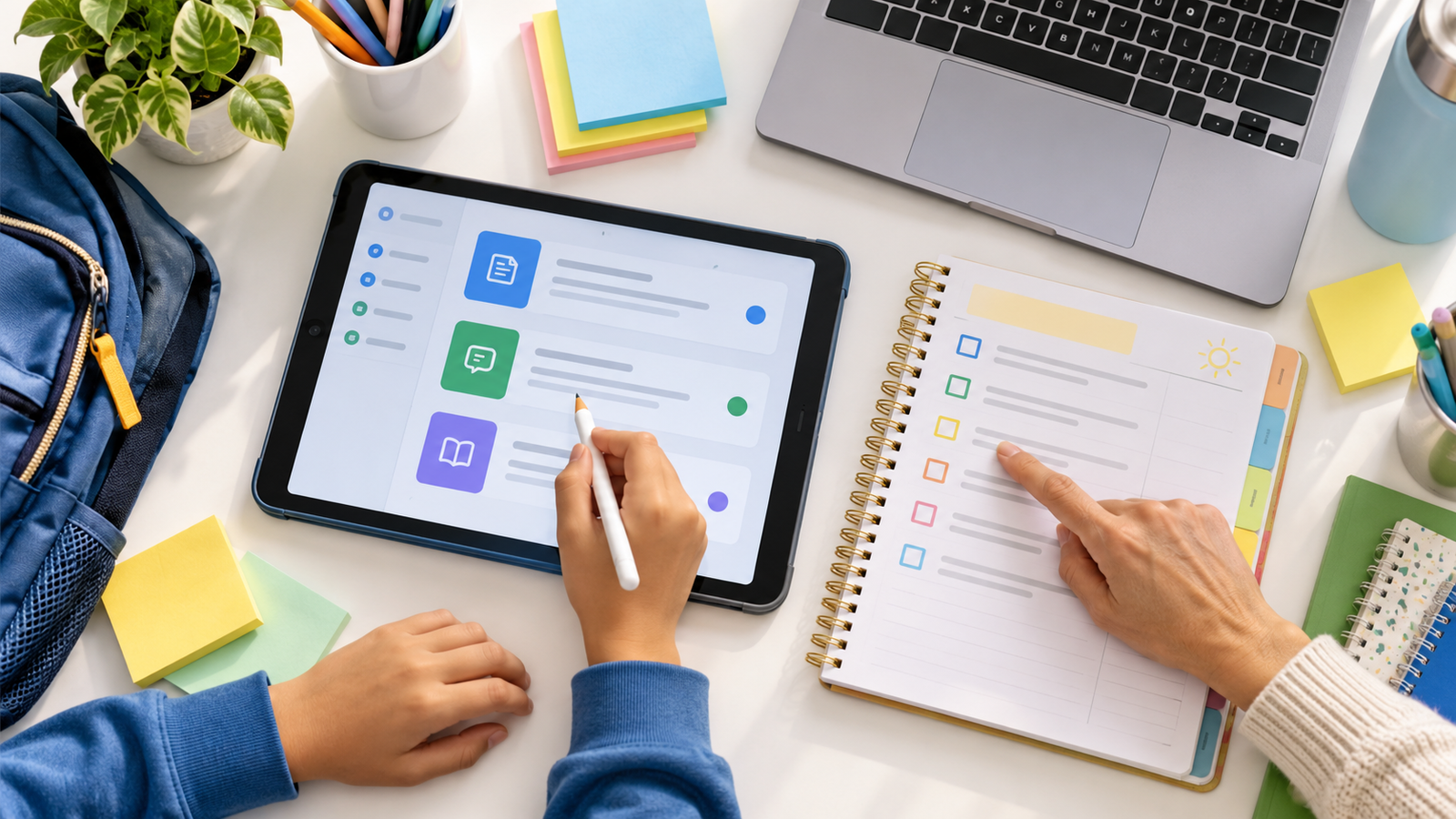
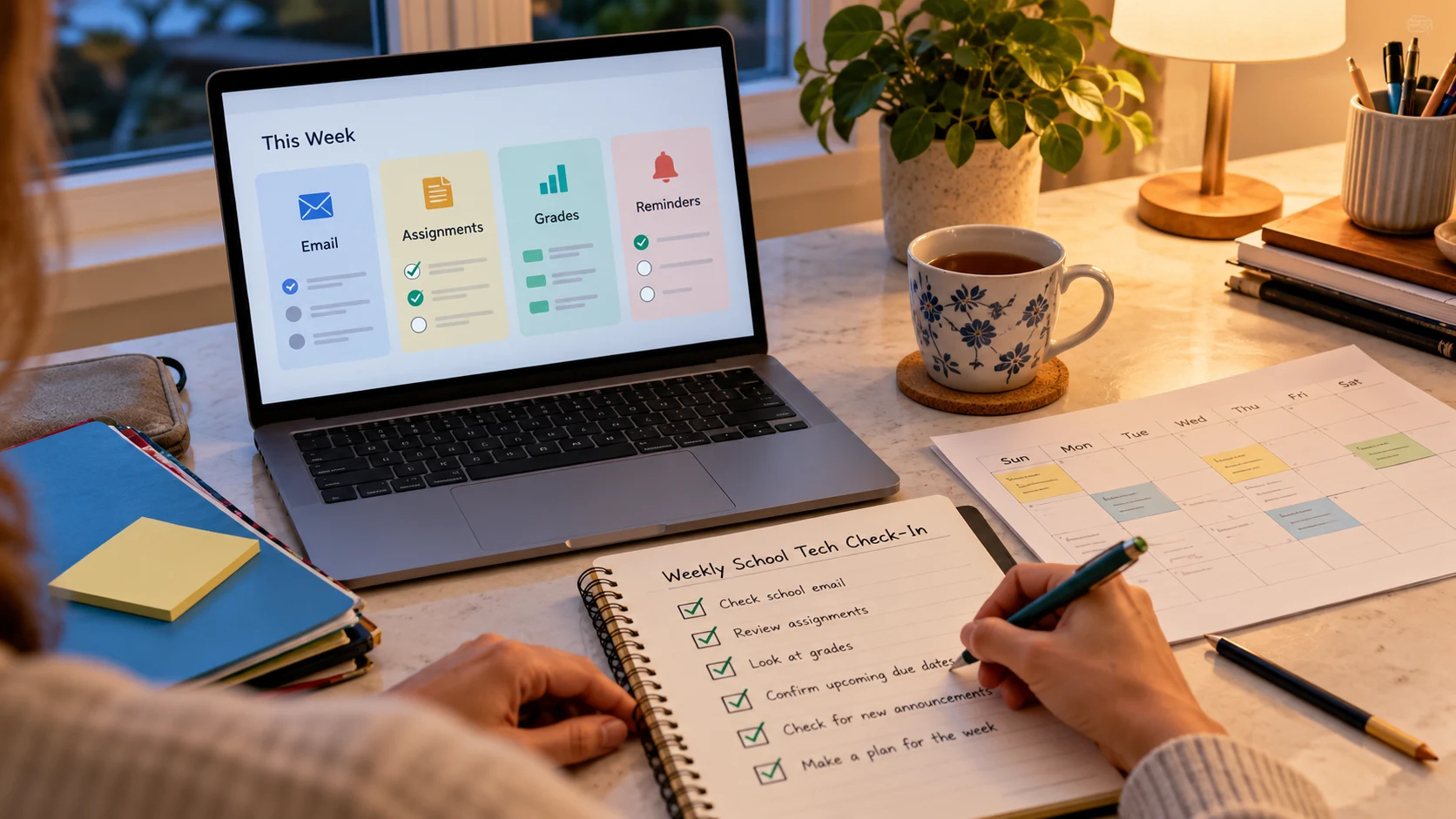
    Our weekly school technology check-in is a simple 15-minute routine to review assignments, grades, and school notifications together.

    School information can come from many different places now. One message may arrive by email. Another update may be posted in Google Classroom or Canvas. Grades may appear in Skyward or another gradebook. A teacher may also send a reminder about a project, form, or upcoming conference.

    For many parents, checking everything every day is not realistic.

    In our home, I have found that weekends are often the easiest time to catch up. During the week, school mornings are busy, evenings can be full, and it is easy to tell myself that I will check the apps later. By the weekend, I sometimes realize that several school updates are waiting in different places.

    That is why a simple weekly school tech check-in can help. It gives parents one regular time to review school information without turning every day into a stressful search.

    1. Pick One Regular Time Each Week

    The first step is choosing a time that is realistic.

    For many families, this might be:

    • Friday evening
    • Saturday morning
    • Sunday afternoon
    • Sunday evening before the new school week

    The exact time does not matter as much as making it consistent.

    Sunday evening works well for many parents because it gives the family time to prepare for Monday. But if Sunday is too busy, Saturday morning may be better.

    The goal is not to spend a long time. Even 15 or 20 minutes can help.

    2. Start With School Email

    Email is often the easiest place to begin because many school updates still arrive there.

    During a weekly check-in, look for:

    • Teacher messages
    • School announcements
    • Conference reminders
    • Forms or attachments
    • Schedule changes
    • Messages about missing work
    • Upcoming events

    If an email needs action, do not leave it buried in the inbox. You can flag it, star it, move it to a school folder, or add a phone reminder.

    A simple rule helps:

    If the email requires action, capture the next step right away.

    3. Check the Main School App

    After email, check the main school app your child uses most.

    This may be:

    • Google Classroom
    • Canvas
    • Schoology
    • Seesaw
    • Another school learning platform

    Look for recent assignments, due dates, teacher comments, and announcements.

    The goal is not to read every old post. Focus on what affects the coming week.

    Useful questions to ask:

    • Is anything due soon?
    • Is there a new project?
    • Did the teacher post instructions?
    • Are there assignments that need parent support?
    • Is anything confusing enough to ask about?

    This step helps parents see what the student may need to work on next.

    4. Review the Gradebook Without Overreacting

    Online gradebooks can be helpful, but they can also create stress if parents check them too often.

    During a weekly check-in, review the gradebook calmly. Look for patterns instead of reacting to every small change.

    Check for:

    • Missing assignments
    • Sudden grade drops
    • Repeated low scores
    • Classes that need attention
    • Assignments marked incomplete

    If your school uses Skyward or another parent portal, the gradebook can show useful information. But remember that gradebooks are not always updated instantly. Sometimes work has been turned in but not graded yet.

    If something is unclear, write it down before asking the student or teacher.

    5. Make a Short Action List

    After checking email, school apps, and the gradebook, make a short list.

    Keep it simple.

    For example:

    • Check Canvas English assignment
    • Ask about missing math worksheet
    • Sign school form
    • Email teacher about conference time
    • Review science project due date
    • Add reminder for Friday deadline

    A short list is better than trying to remember everything.

    If the list gets too long, choose the top two or three items first. Parents and students can easily feel overwhelmed when the list looks endless.

    6. Talk With Your Child Calmly

    A weekly check-in should not feel like an interrogation.

    Instead of starting with, “Why is this missing?” try starting with:

    “Let’s look at what needs attention this week.”

    or

    “I saw a few items in the school app. Can we check them together?”

    The tone matters. If the conversation starts calmly, the student may be more willing to explain what happened.

    Sometimes a missing assignment is not really missing. Sometimes the student submitted it in the wrong place. Sometimes the teacher has not graded it yet. A calm check-in gives the family time to figure it out.

    7. Add Important Deadlines to Your Phone

    If something has a deadline, add it to your phone calendar or reminders.

    This works well for:

    • Project due dates
    • Permission slips
    • Parent-teacher conferences
    • Test dates
    • School forms
    • Assignment resubmission deadlines

    Do not rely only on memory. School information moves too quickly, and parents already have many things to track.

    A good reminder should include the action and the place.

    Example:

    Sunday 7 PM - Check Canvas science project

    or

    Thursday 8 PM - Put signed form in backpack

    Clear reminders reduce last-minute stress.

    8. Save Important Files Right Away

    If you find an important PDF, worksheet, or form during the weekly check-in, save it in one place.

    This could be a school folder on your computer, Google Drive, OneDrive, or another folder you use regularly.

    Useful folder names might be:

    School Files

    2026-2027 School Year

    Forms to Sign

    Needs Attention

    The system does not need to be fancy. It only needs to help you find the file again later.

    9. Keep the Routine Small Enough to Continue

    The most important part of a weekly school tech check-in is keeping it simple.

    A realistic routine might be:

    1. Check school email
    2. Check the main school app
    3. Check the gradebook
    4. Make a short action list
    5. Add reminders for deadlines

    That is enough for most weeks.

    If the routine becomes too complicated, it will be hard to continue. A small routine that happens every week is better than a perfect routine that only happens once.

    Final Thoughts

    Parents do not need to check every school app constantly. That can become stressful and exhausting.

    A weekly school tech check-in gives parents a regular time to review emails, assignments, grades, files, and deadlines. It helps families catch problems earlier without making school technology feel like a daily battle.

    The goal is not perfect control. The goal is to stay aware, reduce surprises, and help the school week start with a little more clarity.
  • Missing Assignments: A Calmer Parent-Child Recovery Plan

    Missing Assignments: A Calmer Parent-Child Recovery Plan

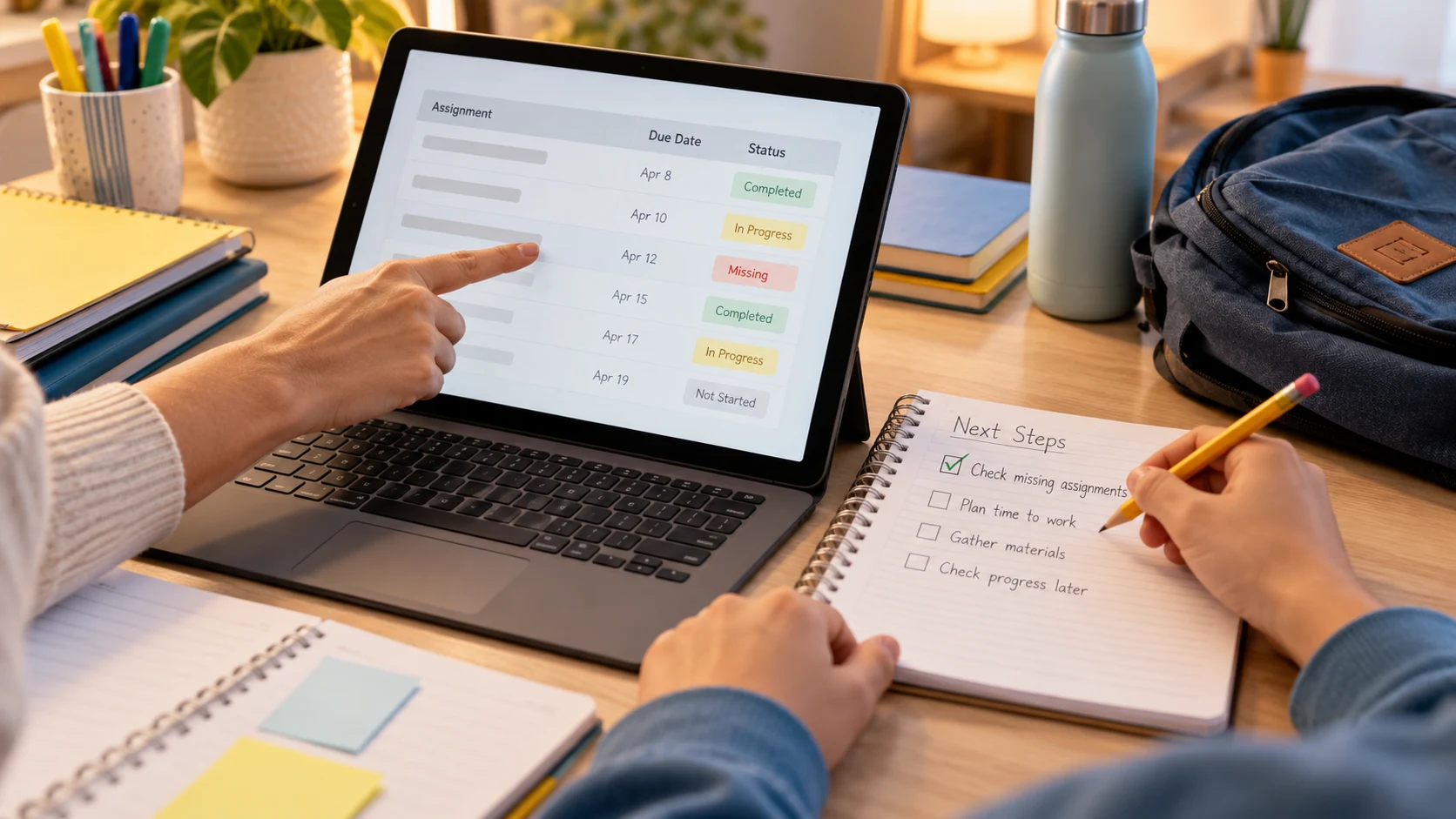
    Missing assignments can create a lot of stress at home. A parent checks the school app or gradebook and suddenly sees several assignments marked as missing. The student may say, “I already turned that in,” or “The teacher has not updated it yet.” The parent may feel worried, frustrated, or unsure what to believe.

    This has happened in our home. I checked the school gradebook and noticed a missing assignment that I had not known about before. It was not always clear whether the work was truly missing, not submitted correctly, or simply not updated yet. That uncertainty made it easy to feel stressed.

    Over time, I realized that missing assignments are easier to handle when I slow down and use a simple routine. The goal is not to argue every day. The goal is to understand what is missing, what needs action, and what can wait.

    1. Check the Gradebook for Patterns, Not Panic

    When parents see the word “missing,” it is easy to react quickly. But one missing assignment does not always mean the student is ignoring schoolwork.

    Sometimes an assignment is:

    • Turned in but not graded yet
    • Submitted in the wrong place
    • Waiting for teacher review
    • Marked missing by mistake
    • Actually not completed

    Before starting a serious conversation, look for patterns.

    Ask yourself:

    • Is this happening in one class or several classes?
    • Are the missing assignments recent or old?
    • Are they small homework tasks or major projects?
    • Is the grade dropping because of one item or many items?

    If the pattern is small, the solution may be simple. If the pattern repeats, it may be time to create a better routine.

    2. Check the Assignment Location

    Missing work often appears in a gradebook, but the details may be somewhere else.

    For example:

    • Skyward or another gradebook may show the missing item.
    • Google Classroom may show the assignment instructions.
    • Canvas may show the module or submission page.
    • Email may include teacher comments.
    • A paper worksheet may still be in the backpack.

    This is why parents should not rely on only one app. The gradebook can tell you something is missing, but the class app often tells you what the assignment actually is.

    A helpful habit is to write down three things:

    1. Class name
    2. Assignment name
    3. Where to find it

    This makes the next step much clearer.

    3. Ask Calm, Specific Questions

    When parents ask, “Why is this missing?” students may feel blamed right away. A calmer question can lead to a better answer.

    Instead of saying:

    “Why didn’t you do this?”

    Try asking:

    “Can we check where this assignment is supposed to be submitted?”

    or

    “Do you remember if this was done on paper or online?”

    or

    “Let’s look at the assignment page together.”

    The tone matters. If the conversation starts as an argument, the student may shut down. If it starts as a problem-solving moment, it is easier to move forward.

    4. Make a Short Missing Assignment List

    If there are several missing assignments, do not try to fix everything at once. That can overwhelm both the parent and the student.

    Create a short list with only the most important items.

    For example:

    ClassAssignmentWhere to CheckNext Step
    EnglishReading worksheetGoogle ClassroomOpen and review
    ScienceLab questionCanvasCheck submission
    MathPractice pageBackpackLook for paper

    A list like this makes the situation feel more manageable. It also helps the student see that the problem is not endless.

    5. Pick One or Two Tasks First

    When a student sees a long list of missing work, it can feel impossible. Parents may want everything fixed quickly, but that often creates more stress.

    A better approach is to choose one or two tasks first.

    Good starting points are:

    • The assignment that affects the grade most
    • The easiest assignment to complete
    • The assignment due soonest
    • The assignment the teacher specifically mentioned

    Finishing one task can create momentum. It also helps avoid the feeling that everything is failing at once.

    6. Use a Weekly Check-In Instead of Daily Arguments

    Checking missing assignments every day can turn school into a constant source of conflict. Some families may need daily checks for a short time, but for many parents, a weekly check-in is more realistic.

    A simple weekly routine could be:

    • Sunday evening: check gradebook
    • Review missing assignments
    • Check Google Classroom or Canvas
    • Write down action items
    • Decide what needs to be done first

    This gives parents a regular time to look without making every evening stressful.

    If there is a serious issue, you can check more often. But for normal school weeks, one scheduled check-in may be enough.

    7. Email the Teacher When Something Is Unclear

    Sometimes parents cannot tell whether an assignment is truly missing. If the student says it was turned in, but the gradebook still shows missing, a short teacher email can help.

    The email does not need to sound accusatory.

    You can write:

    “Hello, I noticed that the gradebook shows the assignment as missing. My child thinks it may have been submitted already. Could you please let us know if we should resubmit it or if it is still waiting to be graded?”

    This kind of message is respectful and clear. It also helps avoid guessing.

    8. Help the Student Build a Small System

    Missing assignments are not always about effort. Sometimes students need a better system.

    A simple system might include:

    • Checking the class app after school
    • Writing assignments in one planner
    • Using phone reminders for due dates
    • Keeping paper worksheets in one folder
    • Reviewing the gradebook once a week

    The system should be simple enough to keep using. If it is too complicated, it will probably stop after a few days.

    9. Keep the Goal Realistic

    The goal is not to make school apps perfect. The goal is to catch problems early enough to respond.

    Missing assignments will happen sometimes. Gradebooks may update slowly. Students may forget. Parents may miss a message. That does not mean everything is failing.

    A calm routine can help parents respond without panic.

    Final Thoughts

    Missing assignments can feel stressful because they appear suddenly and often without the full story. A gradebook may show the problem, but parents still need to check the class app, ask questions, and understand what really happened.

    The best approach is simple: check for patterns, make a short list, choose the first task, and follow up calmly.

    Parents do not need to fight about schoolwork every day. With a small routine, missing assignments can become something to manage instead of something that takes over the whole evening.

  • Phone Reminders That Keep School Deadlines From Slipping By

    Phone Reminders That Keep School Deadlines From Slipping By

    School deadlines can sneak up on parents quickly. One day a teacher sends an email. Another day a school app posts a reminder. A form comes home in a backpack. A due date appears in Google Classroom or Canvas. Each item may seem small, but together they can become hard to track.

    I have had moments when I almost missed a school deadline simply because the information was in too many different places. I saw the message once, thought I would remember it, and then life got busy. By the time I thought about it again, the deadline was much closer than I expected.

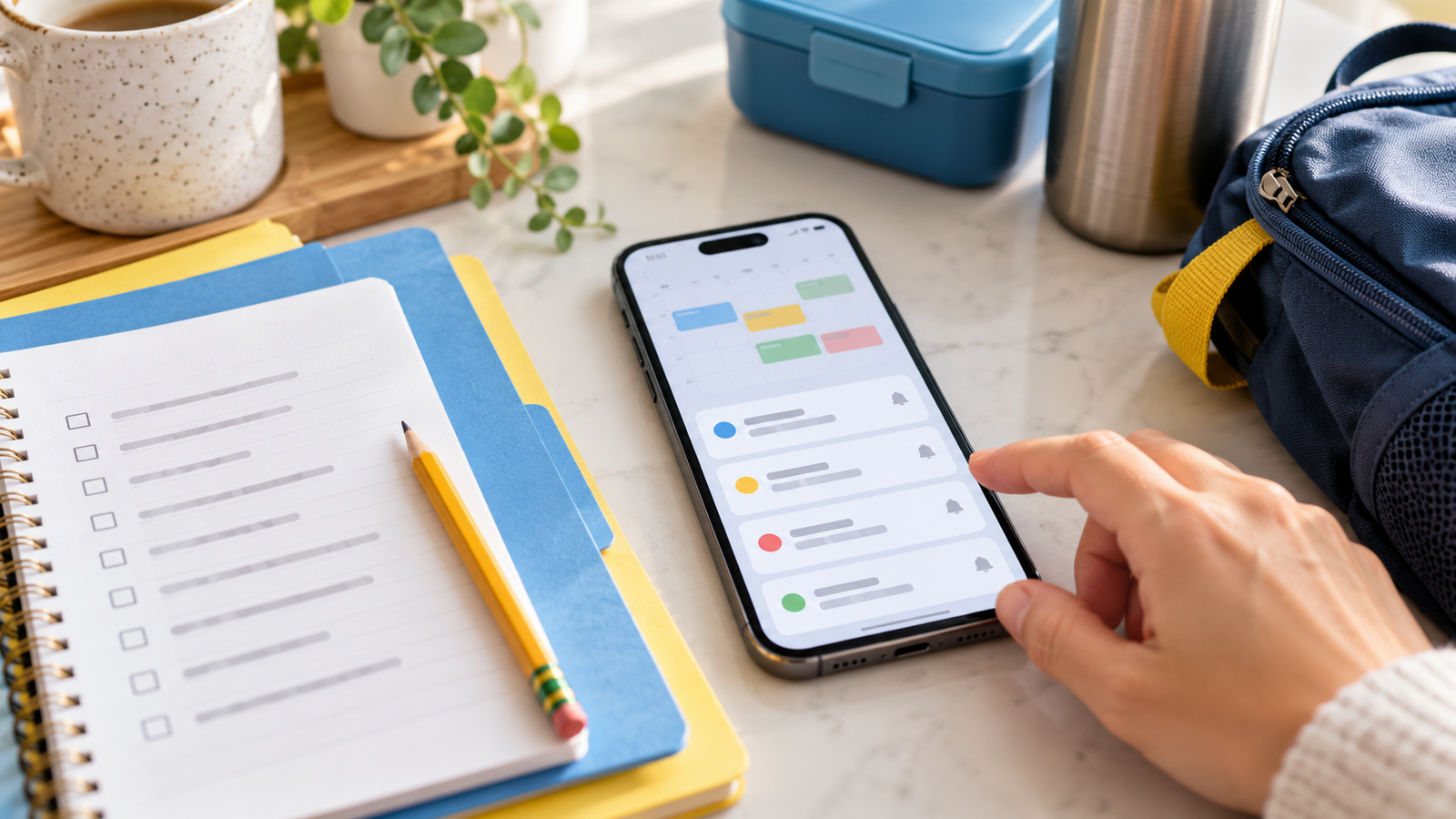
    That is where phone reminders can help. They are not a perfect system, but they are simple, fast, and always nearby. For busy parents, a reminder on the phone can be the difference between “I forgot” and “I still have time.”

    1. Add the Reminder as Soon as You See the Deadline

    The most important habit is to add the reminder right away.

    If I read a school email and think, “I will add this later,” there is a good chance I will forget. The same thing can happen with school apps. A deadline may appear in Google Classroom, Canvas, Skyward, or a teacher message, but if I do not capture it quickly, it gets buried.

    When you see a deadline, add it to your phone immediately.

    Examples:

    • Return permission slip by Friday
    • Check missing assignments tonight
    • Bring signed form tomorrow
    • Parent-teacher conference at 2:30 PM
    • Science project due next Wednesday
    • Review gradebook on Sunday evening

    The reminder does not need to be perfectly written. It just needs to tell you what to do.

    2. Use Clear Reminder Titles

    A vague reminder is not very helpful. If your phone says “School,” you may not remember what that means.

    A better reminder title includes the action.

    Instead of:

    School

    Use:

    Sign field trip form

    Instead of:

    Teacher

    Use:

    Email teacher about missing assignment

    Instead of:

    Canvas

    Use:

    Check Canvas writing assignment

    Clear titles save time because you do not have to figure out what you meant later.

    3. Set the Reminder Before the Real Deadline

    One mistake is setting the reminder for the exact deadline time. That may be too late.

    If a form is due Friday morning, a Friday morning reminder may not help much. You may be driving, getting ready, or already out of time. It is better to set the reminder earlier.

    For school deadlines, I like using two reminders when something is important:

    • One reminder a few days before
    • One reminder the night before

    For example:

    Tuesday 7:00 PM - Sign field trip form

    Thursday 7:30 PM - Put signed form in backpack

    This works better than one last-minute reminder because it gives the family time to act.

    4. Use Evening Reminders for Parent Tasks

    Many school tasks are parent tasks, not student tasks. These often work better as evening reminders.

    For example:

    • Sign a document
    • Reply to a teacher email
    • Check the gradebook
    • Print a worksheet
    • Upload a form
    • Review missing assignments

    Evening reminders are useful because parents are usually not trying to solve these things during the school morning. Morning is already busy. Evening gives more space to read, check, and respond.

    A simple routine could be:

    7:30 PM - Check school reminders

    This one reminder can become a daily or weekly habit.

    5. Connect Reminders With School Apps

    Phone reminders work best when they point you back to the right place.

    If the information is in Google Classroom, write that in the reminder.

    Example:

    Check Google Classroom math assignment

    If the information is in Canvas, write:

    Review Canvas English module

    If the information is in email, write:

    Reply to Ms. Smith's email about conference time

    If the information is in Skyward or another gradebook, write:

    Check Skyward gradebook for missing work

    This helps because school information is often spread across different tools. A reminder should not only tell you what to do. It should also tell you where to look.

    6. Use Repeating Reminders Carefully

    Repeating reminders can be helpful, but too many can become annoying.

    A good repeating reminder might be:

    Sunday 6:00 PM - Check school apps and emails

    This gives parents one regular time to look at school information before the new week begins.

    Another useful reminder might be:

    Friday 7:00 PM - Review missing assignments

    This can help families catch problems before they become bigger.

    But I would avoid too many daily reminders unless they are truly needed. If the phone sends too many alerts, parents may start ignoring them. A few useful reminders are better than many noisy ones.

    7. Keep School Reminders Separate From Other Tasks

    If possible, use a school-related list or category in your reminder app.

    For example:

    School

    or

    Parent School Tasks

    This keeps school reminders separate from grocery lists, work tasks, appointments, and personal errands.

    When school tasks are mixed with everything else, they are easier to miss. A separate list makes it easier to scan what needs attention.

    You do not need a complicated app for this. The built-in Reminders app on iPhone or Google Tasks on Android can be enough.

    8. Delete or Complete Old Reminders

    Old reminders can make the system messy. If a reminder is finished, mark it complete. If it no longer matters, delete it.

    This seems small, but it helps a lot. When old reminders stay on the list, the important ones are harder to see.

    A clean reminder list gives parents a better sense of what actually needs attention now.

    9. Make the Reminder System Simple Enough to Keep Using

    The best reminder system is the one you will actually use.

    It does not need color coding, complicated labels, or a special app. For many parents, the basic phone reminder app is enough.

    A simple system might look like this:

    • Add school deadlines as soon as you see them
    • Use clear action words
    • Set reminders before the real deadline
    • Use evening reminders for parent tasks
    • Check school apps once a week
    • Clear old reminders regularly

    That is enough to prevent many missed deadlines.

    Final Thoughts

    School deadlines can be easy to miss because information comes from many places: emails, apps, gradebooks, teacher messages, and paper forms. Parents do not need to remember everything by themselves.

    Phone reminders can act like a small safety net. They help parents capture important tasks before they disappear into a busy day.

    The goal is not to make school life perfect. The goal is to reduce the chance of forgetting something important and give the family a little more breathing room.

  • A School File System for PDFs, Forms, and Teacher Documents

    School information does not always stay in one place anymore. A teacher may send a PDF by email, post a worksheet in Google Classroom, upload a document to Canvas, or attach a form to a school message. At first, each file seems easy to find. But a few days later, it can be surprisingly hard to remember where it came from.

    This has happened in our home. I knew I had seen a school file before, but when I needed it again, I could not remember whether it was in an email, a school app, a download folder, or a printed paper. The file was not gone, but it felt lost because it was scattered across too many places.

    That is why a simple school file system can help parents. It does not need to be complicated. The goal is to make important school documents easier to find when you actually need them.

    1. Choose One Main Place for School Files

    The first step is to choose one main place to keep school files.

    This could be:

    • A folder on your computer
    • A folder in Google Drive
    • A folder in OneDrive
    • A folder on your phone
    • A printed binder for very important papers

    The exact tool matters less than consistency. If every school file goes to a different place, it becomes hard to remember where to look.

    A simple folder name works well:

    School Files

    Inside that folder, you can create smaller folders by school year or child name.

    For example:

    School Files > 2026-2027

    If you have more than one child, you can create folders by name. If you have one child, a school-year folder may be enough.

    2. Rename Files So They Make Sense Later

    Many school files have confusing names. A downloaded worksheet might be called something like:

    document-4.pdf

    or

    assignment_final_version2.pdf

    That name may make sense to the teacher or school system, but it will not help much later.

    When saving an important file, rename it with a simple description.

    Examples:

    English_Checkouts_Worksheet_October.pdf

    Science_Progress_Report_October.pdf

    Parent_Teacher_Conference_Notes.pdf

    Math_Missing_Assignments_List.pdf

    The name does not need to be perfect. It only needs to help you recognize the file later.

    I like using the subject and a short description. If the date matters, adding the month can also help.

    3. Save Email Attachments Right Away

    Email attachments are easy to lose because they stay inside old messages. If you remember the teacher’s name or the exact subject line, you may find the file quickly. But if you only remember “there was a worksheet,” searching can take time.

    When a school email has an important attachment, save it to your school folder right away.

    This is useful for:

    • Permission slips
    • Progress reports
    • Reading materials
    • Class schedules
    • Conference notes
    • Special instructions
    • Forms that need to be returned

    If you do not have time to organize it perfectly, even saving it into one main folder is better than leaving it buried in email.

    4. Use One Simple “Needs Attention” Folder

    Not every file needs the same level of attention. Some school documents are just for reference. Others need action.

    For files that require action, it helps to create a folder called:

    Needs Attention

    This folder can be used for items such as:

    • Forms to sign
    • Worksheets to review
    • Documents to print
    • Files to send back
    • Notes to discuss with a teacher

    After the task is done, move the file out of the folder or delete it if you no longer need it.

    This keeps urgent files from getting mixed with older reference documents.

    5. Take Screenshots When Files Are Hard to Save

    Sometimes school apps do not make downloading easy. A teacher may post instructions inside an app, or a message may appear in a place that is hard to organize.

    In that situation, a screenshot can help.

    For example, if an assignment instruction is posted in a school app, you can take a screenshot and save it to the school folder. Rename it with a simple title so it does not become another mystery image later.

    Example:

    Canvas_Writing_Assignment_Instructions_October.png

    Screenshots should not replace real files when a PDF or document is available, but they are useful when the information is otherwise hard to capture.

    6. Keep Printed Papers and Digital Files Connected

    Some school information still comes home on paper. Other information comes through apps. The problem is that parents often need both.

    If a paper is important, I sometimes take a photo of it before putting it away. That way, I can still find the information even if the paper is in a backpack, folder, or pile on the table.

    This works well for:

    • Event reminders
    • Class schedules
    • Field trip notices
    • Teacher notes
    • Short instruction sheets

    The photo does not need to be beautiful. It just needs to be readable.

    7. Review the Folder Once a Week

    A school file system only works if it stays simple. A weekly review can help prevent the folder from becoming another messy place.

    Once a week, look through the main school folder and ask:

    • Is there anything that needs action?
    • Are there old files I no longer need?
    • Are important files named clearly?
    • Do I need to move anything into the right folder?

    This does not need to take long. Even five minutes can make a difference.

    For busy parents, a weekly check is more realistic than trying to organize every file perfectly every day.

    8. Do Not Try to Save Everything Forever

    One mistake parents can make is saving every school file forever. That sounds safe, but it can make the system harder to use.

    Some files are only useful for a short time. For example, a weekly classroom announcement may not matter after the week is over. A temporary reminder may not need to stay in your folder for months.

    Keep the important files. Delete or archive the ones that no longer matter.

    A useful file system should make life easier, not create more digital clutter.

    Final Thoughts

    School files can get lost easily because they come from many different places: email, Google Classroom, Canvas, school portals, downloads, and paper handouts. Parents do not need a complicated system to manage them.

    A simple folder, clear file names, and a short weekly review can make school documents much easier to find.

    The goal is not perfect organization. The goal is to avoid the stressful moment when you know you saw a file somewhere but cannot remember where it went.

  • A Calm Parent-Teacher Conference Checklist for Busy Families

    A Calm Parent-Teacher Conference Checklist for Busy Families

    Parent-teacher conferences are helpful, but they can also feel a little stressful. The meeting time is often short, teachers are busy, and parents may have several questions but not much time to organize them.

    In our family, one of the hardest parts has not always been the meeting itself. Sometimes the difficult part is simply finding a time that works. Between school schedules, teacher availability, parent work schedules, and family routines, it can take several emails just to confirm a meeting time. By the time the conference is finally scheduled, it is easy to feel rushed and unprepared.

    That is why I think parent-teacher conference preparation should start before the meeting is on the calendar. A little organization can make the conversation much easier.

    1. Start With the Main Reason for the Meeting

    Before opening school apps or checking grades, it helps to ask one simple question:

    What do I most want to understand from this meeting?

    The answer does not need to be complicated. It might be:

    • Is my child keeping up with assignments?
    • Is there a pattern in missing work?
    • Is my child participating in class?
    • What should we focus on at home?
    • Is there one skill that needs extra support?

    When I do not write this down first, I tend to collect too much information. Then the meeting becomes scattered. A clear main question helps me listen better and ask better follow-up questions.

    2. Check the School Gradebook Before the Meeting

    If your school uses a parent portal such as Skyward, PowerSchool, Infinite Campus, or another gradebook system, it is useful to check it before the conference.

    I do not recommend checking every small grade with panic. A single low score does not always tell the whole story. Instead, look for patterns.

    For example:

    • Are missing assignments showing up often?
    • Are quiz scores lower than homework scores?
    • Is one class much harder than the others?
    • Are grades improving or dropping over time?
    • Are there assignments marked missing that may have already been turned in?

    If your school uses Skyward, the Gradebook section can be helpful because it shows assignments, scores, and missing work in one place. Before a conference, I would write down only the items that need clarification. The goal is not to challenge every number. The goal is to understand what is happening.

    3. Review Google Classroom, Canvas, or Other Class Apps

    Many teachers now use Google Classroom, Canvas, Schoology, or other learning platforms. These tools can be very useful, but they can also make school information feel spread out.

    Before a conference, I like to check the class app for three things:

    1. Recent assignments
    2. Teacher comments or instructions
    3. Upcoming due dates

    This helps me avoid asking questions that already have simple answers online. It also helps me ask more specific questions.

    Instead of saying, “How is my child doing?” I can ask:

    “ I noticed the last writing assignment was difficult. What part of the assignment should we work on at home?”

    That type of question usually leads to a better conversation.

    4. Look Through Recent Teacher Emails

    Teacher emails are easy to miss, especially when school messages, app notifications, and personal emails are all mixed together.

    Before a parent-teacher conference, I try to search my email for the teacher’s name or class name. This helps me find earlier messages that may still matter.

    Useful things to look for include:

    • Missing assignment reminders
    • Behavior or participation notes
    • Test or project announcements
    • Schedule changes
    • Previous teacher suggestions

    This step is especially helpful when meeting times are hard to arrange. If there were several emails just to schedule the conference, important details can get buried in the conversation thread. Searching the teacher’s name helps bring everything back into one place.

    5. Write Down Questions Before the Meeting

    A short list of questions can make the meeting much more productive.

    I usually think of questions in three groups:

    Academic questions:

    • What skill should we focus on most right now?
    • Are missing assignments affecting the grade?
    • Is my child understanding the material in class?

    Organization questions:

    • Is my child turning in work on time?
    • Does my child need help tracking assignments?
    • Which app should we check most often?

    Support questions:

    • What can we do at home?
    • Is there a resource or routine you recommend?
    • Should we follow up again in a few weeks?

    It is better to bring five clear questions than a long list that cannot fit into the meeting time.

    6. Keep Notes During the Conference

    During the meeting, I try to write down only the most useful points. I do not need to record every sentence. I mainly want to capture action items.

    For example:

    • Check Google Classroom every Monday
    • Review missing assignments on Friday
    • Email teacher if a grade still looks incorrect
    • Help child start writing assignments earlier
    • Schedule a follow-up meeting if needed

    After the conference, these notes become the plan. Without notes, it is easy to leave the meeting feeling encouraged but then forget the details a few days later.

    7. Send a Short Follow-Up Email

    After the conference, a short email can help everyone stay on the same page.

    It does not need to be formal or long. Something like this is enough:

    “Thank you for meeting with me today. I appreciate your time. I will help my child check assignments more regularly and focus on the writing practice we discussed. Please let me know if there is anything else we should watch for.”

    This kind of message is useful because it confirms the plan and keeps communication open. It also gives the teacher a clear sense that the parent is trying to follow through.

    8. Make the Plan Simple Enough to Continue

    The biggest mistake is creating a plan that is too complicated. A conference can give parents a lot of information, but the follow-up routine should be simple.

    For our family, the most realistic plan is usually something small:

    • Check the gradebook once or twice a week
    • Look at Google Classroom or Canvas on a regular day
    • Save important teacher emails
    • Keep one short list of questions for follow-up

    A parent does not need a perfect system. A simple routine that continues is better than a complicated system that stops after one week.

    Final Thoughts

    Parent-teacher conferences work best when parents arrive with a clear picture, a few focused questions, and a simple follow-up plan.

    School apps, gradebooks, and emails can feel overwhelming when they are scattered across different places. But when parents use them before the meeting, they can make the conversation much more useful.

    The goal is not to control every detail. The goal is to understand what is happening, support the child better, and make the next step clear.

  • Our Weekly Homework Routine With Google Classroom and Canvas

    Our Weekly Homework Routine With Google Classroom and Canvas

    Homework can become harder to manage when school information is spread across different digital tools.

    In our home, this became clear during busy school weeks. Some assignments were posted in Google Classroom. Some appeared in Canvas. Other information came through email, a school app, or a paper handout brought home from school.

    At first, it seemed like checking the school app once in a while would be enough. But that was not always true. A due date might be in one place, teacher comments might be somewhere else, and the actual document or assignment link might be inside another section.

    The problem was not the technology itself. The problem was that homework information was spread across too many places.

    That is why a simple routine matters. The goal is not to monitor every detail. The goal is to help parents and students know what needs attention before it becomes stressful.

    1. Choose One Homework Check Time

    The first step is to choose one regular time to check homework.

    This does not need to be long. Even 10 to 15 minutes can help. For many families, this works well after school, after dinner, or before screen time.

    During this time, parents and students can quickly check:

    • what assignments are due soon
    • what has already been submitted
    • what still needs work
    • whether there are teacher comments
    • whether anything should be added to the family calendar

    A regular homework check time helps prevent last-minute surprises.

    2. Start With the Main School Platform

    Many schools use a main platform such as Google Classroom, Canvas, Schoology, or another learning system.

    Start with the platform your child’s school uses most often. If your child uses Google Classroom, check the class stream, classwork section, and due dates. If your child uses Canvas, check the dashboard, calendar, to-do list, and individual course pages.

    The exact platform may be different, but the parent habit is the same: start with the main place where assignments are posted.

    This helps reduce confusion. Instead of jumping between email, apps, and messages, begin with the main school platform first.

    3. Learn Where Assignments and Due Dates Appear

    One thing that can confuse parents is that each platform organizes information differently.

    In Google Classroom, an assignment may appear under Classwork, in the stream, or inside a specific topic. In Canvas, assignments may appear on the dashboard, in the course calendar, in modules, or in the to-do list.

    Parents do not need to become experts in every feature. But knowing where to check assignments, due dates, and teacher comments can make the weekly routine much easier.

    A few minutes of learning where things are posted can save a lot of searching later.

    4. Check Whether Work Was Submitted

    Seeing an assignment does not always mean it has been submitted.

    This is one detail that is easy to miss. A student may open the assignment, start the work, or save a document, but still need to click submit or turn in.

    In Google Classroom, parents and students can check whether an assignment is marked as turned in. In Canvas, they can look for submission status, missing work, or teacher feedback.

    A helpful question is:

    “Is it finished, or is it actually submitted?”

    That small question can prevent confusion later, especially with online homework.

    5. Move Important Due Dates to the Family Calendar

    Google Classroom and Canvas may show due dates, but it is still helpful to move important dates to the family calendar.

    This is especially useful for bigger assignments, tests, projects, presentations, or anything that needs parent support.

    For example, you can add:

    • science project due Friday
    • math test Thursday
    • essay draft due Wednesday
    • reading log due Monday
    • presentation practice Tuesday
    • bring supplies for class project

    The school platform may hold the assignment details, but the family calendar gives everyone a simple view of the week.

    6. Use Short Notes Instead of Long Reminders

    Parents do not need to rewrite the whole assignment.

    A short note is often enough. For example:

    • Finish worksheet
    • Review vocabulary
    • Submit online quiz
    • Upload document
    • Check teacher feedback
    • Practice presentation

    Short notes are easier to read and less overwhelming. If the assignment has detailed instructions, keep those details inside Google Classroom, Canvas, or the school platform.

    The calendar note should only remind the family what needs attention.

    7. Create a Small Homework Folder

    A homework folder can be digital, physical, or both.

    For paper assignments, a simple folder in the backpack can help. For digital assignments, students may need help keeping files organized.

    A digital homework folder might include:

    • current assignments
    • project documents
    • study guides
    • downloaded worksheets
    • writing drafts
    • presentation files

    This can be especially useful when students download files from Canvas, Google Classroom, or email. Without a simple folder, documents can get lost in downloads or saved in different places.

    8. Avoid Too Many Notifications

    Homework reminders can be useful, but too many alerts can become distracting.

    Google Classroom, Canvas, email, and school apps may all send notifications. If every small update creates an alert, both parents and students may start ignoring them.

    It may help to keep notifications for important items such as:

    • missing assignments
    • due dates
    • teacher comments
    • grade updates
    • schedule changes

    For everyday homework, a regular check-in routine may work better than constant phone alerts.

    9. Let the Student Take Part in the Routine

    A homework routine should not depend only on the parent.

    Students can learn to check assignments, open the right platform, review due dates, and confirm whether work has been submitted. Parents can support the process without doing everything for them.

    Helpful questions include:

    • What is due tomorrow?
    • What is due later this week?
    • Where is the assignment posted?
    • Did you submit it?
    • Did the teacher leave feedback?
    • Do you need help with anything?

    These questions help students practice responsibility while still receiving support.

    10. Keep the System Simple

    A homework system should make school life easier, not more complicated.

    You do not need a perfect app setup. You do not need color coding for every subject. You do not need to track every small detail inside every platform.

    For many families, a simple routine is enough:

    • check the main school platform
    • look at due dates
    • confirm whether work was submitted
    • add important dates to the family calendar
    • keep files in one place
    • use reminders only when needed

    The best system is one your family can keep using during a normal busy week.

    Final Thoughts

    Google Classroom, Canvas, and other school apps can help families stay informed, but they can also feel confusing when homework information is spread across different places.

    A simple homework routine can make the process easier. Choose one regular homework check time. Start with the main school platform. Learn where assignments and due dates appear. Confirm whether work was submitted. Move important dates to the family calendar.

    The goal is not to watch every assignment perfectly. The goal is to help students and parents see what needs attention, reduce last-minute stress, and build a routine that works in real family life.

  • How Parents Can Keep School Login Information Organized

    How Parents Can Keep School Login Information Organized

    School login information can become confusing very quickly for parents.

    As a parent, I have learned that school technology is not just one username and one password. There may be a parent portal, a school district account, a classroom app, a lunch account, a library account, a learning platform, and sometimes separate student logins.

    At first, I thought I could remember most of it. But that did not work well. One login might be saved on my phone, another might be in an old email, and another might be written on a paper from school. When I needed to log in quickly, I sometimes had to search through emails or reset a password again.

    That is when I realized school login information needs a simple system. The goal is not to make it complicated. The goal is to keep the most important information in one safe and easy-to-find place.

    1. Make a List of School Accounts

    The first step is to write down which school accounts your family uses.

    Many parents have more accounts than they realize. A simple list may include:

    • parent portal
    • school district website
    • classroom app
    • school email account
    • lunch payment account
    • transportation account
    • library or textbook account
    • student learning platform
    • sports or activity account

    You do not need to organize everything perfectly at first. Just making a list helps you understand what needs to be managed.

    This also helps when the school year begins and new apps or accounts are introduced.

    2. Separate Parent Accounts and Student Accounts

    Parent accounts and student accounts are not always the same.

    A parent portal may show grades, attendance, messages, and school forms. A student account may be used for assignments, online textbooks, email, or classroom activities.

    It helps to label each account clearly. For example:

    • Parent account for grades
    • Student account for assignments
    • Lunch payment account
    • School communication app

    This makes it easier to know which login is needed for each task.

    It can also reduce confusion when a child asks for help with homework, but the parent login does not work on the student platform.

    3. Use a Safe Password Manager

    For many families, a password manager can make school logins much easier to handle.

    A password manager can save usernames and passwords securely, so parents do not have to remember every login. Many phones and browsers also have built-in password-saving tools.

    The important part is to keep the information safe. Avoid writing passwords on loose paper that can be lost. Avoid using the same simple password for every school account.

    If you use a password manager, make sure the main password is strong and that you can access it when needed.

    This is especially helpful when school apps are used on more than one device.

    4. Keep Important School Emails

    Many school login details are sent by email.

    If you receive an email with account setup instructions, login links, temporary passwords, or student access codes, save that email in a school folder. This can help later if you need to set up the account again.

    You can create a folder or label called:

    • School Logins
    • School Accounts
    • Parent Portal
    • Student Accounts

    This does not need to be fancy. The point is to avoid losing important setup information in a crowded inbox.

    When I started saving these emails in one place, it became much easier to find login instructions again.

    5. Add Notes Without Saving Sensitive Details Everywhere

    Sometimes parents need small notes to remember what an account is for.

    For example, you might write:

    • Used for grades and attendance
    • Used for school lunch payments
    • Used for weekly classroom updates
    • Student uses this for assignments

    These notes can be helpful, but be careful with sensitive information. Do not store passwords in an unsafe place. If you need to save passwords, use a secure password manager instead of a regular note app or paper list.

    A short description of each account is usually enough to reduce confusion.

    6. Check Logins Before You Really Need Them

    One of the most stressful times to find a login problem is right before a deadline.

    For example, you may need to check a grade, submit a form, pay for lunch, or open an assignment link. If the password does not work at that moment, everything becomes more stressful.

    A better habit is to check important school logins early in the school year.

    Try logging into:

    • the parent portal
    • school communication app
    • lunch payment account
    • student learning platform
    • school email or classroom account

    If something does not work, you have time to ask the school for help before it becomes urgent.

    7. Update the List During the School Year

    School technology can change during the year.

    A teacher may introduce a new classroom tool. A school may send a new app invitation. A student may receive a new account for a class project. If you do not update your list, the system becomes outdated.

    When a new school account appears, add it to your list right away. Include what the account is for and whether it belongs to the parent or the student.

    This small habit can save time later.

    Final Thoughts

    School login information can feel scattered when parents have to manage different apps, websites, portals, and student accounts. It is easy to forget which login belongs to which tool.

    A simple system can help. Start by making a list of school accounts. Separate parent accounts from student accounts. Use a safe password manager, save important setup emails, and check important logins before you urgently need them.

    The goal is not to create a perfect technology system. The goal is to make school accounts easier to find, easier to use, and less stressful for busy families.

  • How to Keep School App Notifications Organized as a Parent

    How to Keep School App Notifications Organized as a Parent

    School apps can be helpful, but the notifications can quickly become overwhelming. Here is a simple way for parents to organize school app alerts, emails, calendars, and reminders without feeling buried by technology.

    School apps can be very helpful for parents, but they can also become overwhelming very quickly.

    As a parent, I have learned that school information does not come from just one place anymore. One message may come through a school app. Another may arrive by email. A teacher may post an update in a classroom platform. A reminder may come as a phone notification. Sometimes there is also a paper handout in the backpack.

    At first, I thought more notifications would make things easier. But after a while, I realized that too many alerts can have the opposite effect. When everything feels urgent, it becomes harder to know what actually needs attention.

    That is why I started thinking about school app notifications as something that needs a simple system. The goal is not to check every message the second it arrives. The goal is to make sure important school information does not get lost.

    1. Make a Simple List of School Apps

    The first step is to know which school apps and websites your family actually uses.

    Many parents have more than one school-related tool on their phone. There may be one app for grades, one for school announcements, one for class messages, one for lunch accounts, and another for sports or activities.

    Write down the main tools your family uses. For example:

    • school district app
    • parent portal
    • classroom app
    • school email
    • calendar app
    • activity or sports app

    This simple list helps you see where school information is coming from. It also helps you decide which apps need notifications and which ones do not.

    2. Decide Which Alerts Are Truly Important

    Not every notification needs to interrupt your day.

    Some alerts are important, such as schedule changes, attendance messages, teacher communication, assignment deadlines, or school closure notices. Other alerts may be useful but not urgent.

    A good question to ask is:

    “Do I need to know this right away, or can I check it later?”

    For example, a school closure alert should probably stay on. A weekly newsletter notification may not need to pop up immediately. A grade update may be something you check once or twice a week instead of every time it changes.

    This small decision can reduce a lot of stress.

    3. Turn Off Notifications You Do Not Need

    Once you know which alerts matter most, turn off the notifications that are not necessary.

    This does not mean deleting the app. It just means the app does not need to interrupt you all day.

    For some apps, you can change notification settings inside the app. For others, you may need to use your phone settings. On many phones, you can choose whether an app can show banners, sounds, badges, or lock screen notifications.

    For parents, I think sound alerts should be used carefully. If every app makes a sound, the phone becomes stressful. Save sounds for truly important school alerts.

    A quieter phone can actually make it easier to notice the messages that matter.

    4. Use One Main Calendar for School Events

    School apps often show dates, but it is still helpful to keep important events in one family calendar.

    When school events stay only inside different apps, parents may forget to check them. A family calendar gives you one place to see what is coming.

    Add important school items such as:

    • early dismissal days
    • school holidays
    • tests
    • project due dates
    • conferences
    • performances
    • sports or music practice
    • appointments

    This has helped me because I do not have to remember which app had which date. If it is important for the family schedule, it goes into the main calendar.

    5. Create a Weekly School Tech Check-In

    Instead of checking school apps randomly all day, try a short weekly routine.

    For example, once a week, you can spend 10 to 15 minutes checking the main school apps and email. Sunday evening or Monday morning can work well for many families.

    During this check-in, look for:

    • new school announcements
    • upcoming assignments
    • schedule changes
    • forms that need to be signed
    • teacher messages
    • events that should be added to the calendar

    This routine helps parents feel less behind. It also prevents school information from piling up across different apps.

    The routine does not need to be perfect. Even a quick weekly check is better than waiting until something becomes urgent.

    6. Keep School Emails Easy to Find

    School emails can get buried quickly, especially if your inbox receives many other messages.

    One simple solution is to create a folder or label for school emails. You can call it “School,” “Kids School,” or something simple that is easy to remember.

    You can also search by the school name, teacher name, or district email address when you need to find something later.

    If you receive many school emails, consider keeping only the important ones. For example, save emails about conferences, school forms, schedule changes, or teacher communication. Newsletters and general announcements may not need to stay forever.

    The goal is to make important information easier to find when you need it.

    7. Do Not Try to Track Everything Perfectly

    One thing I have learned is that a parent organization system needs to be realistic.

    It is easy to feel like we should track every grade, every message, every form, every app notification, and every calendar update perfectly. But that can become exhausting.

    A better goal is to create a simple system that catches the most important information.

    For our family, that means keeping key notifications on, moving important dates to one calendar, checking school apps regularly, and saving important emails. It is not perfect, but it makes school weeks feel more manageable.

    Parents already have a lot to keep track of. The system should reduce stress, not create more work.

    Final Thoughts

    School apps are supposed to help parents stay informed, but too many notifications can become confusing. When messages come from different apps, emails, calendars, and paper handouts, it is easy for important information to get lost.

    A simple system can help. Start by listing the school apps your family uses. Keep only the most important alerts turned on. Add key dates to one family calendar. Create a weekly school tech check-in. Keep school emails easy to find.

    The goal is not to respond to every notification immediately. The goal is to stay organized enough that your family can move through the school week with less stress.