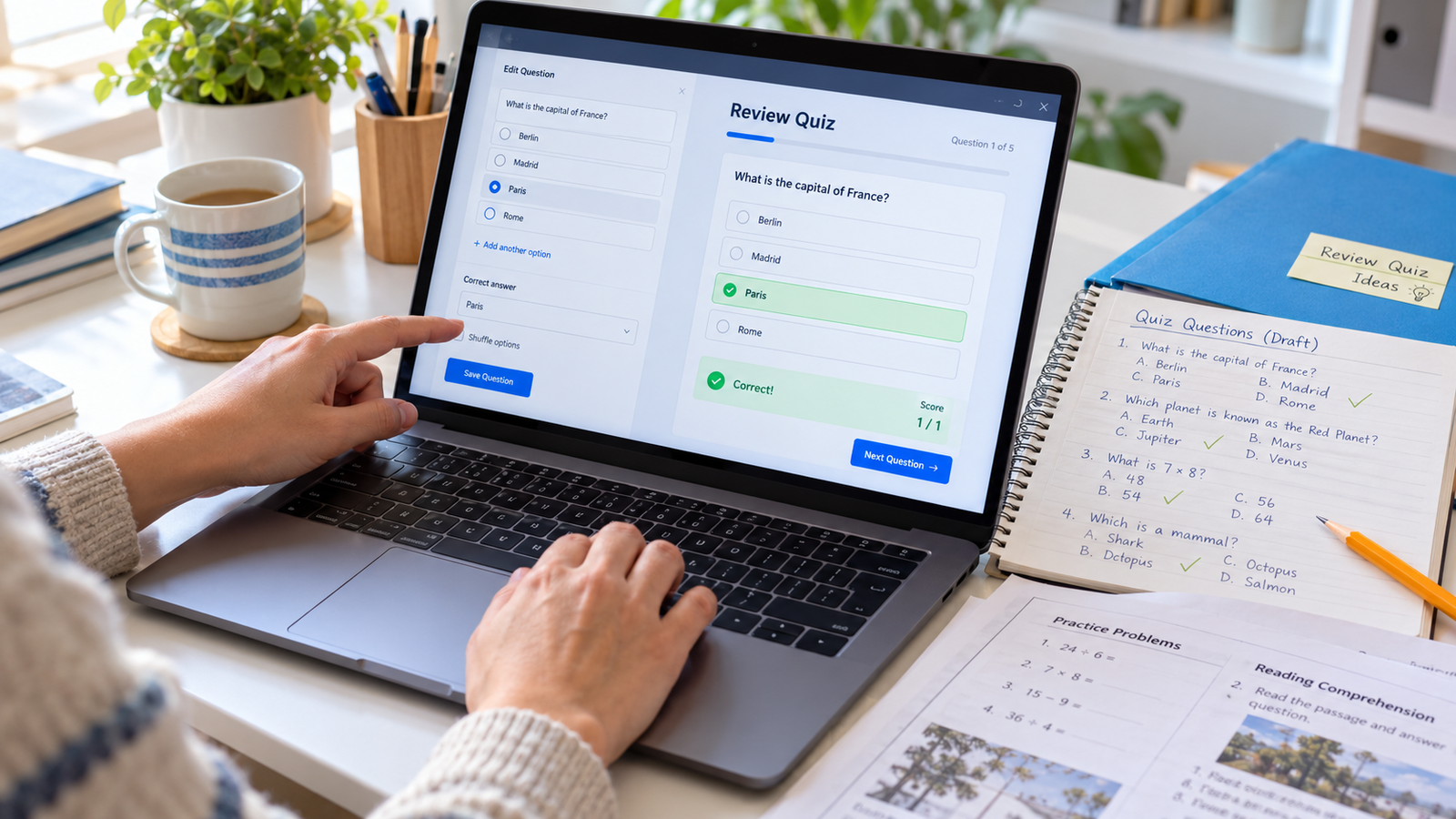
Sometimes a child needs a quick way to review vocabulary, science facts, history dates, math terms, or reading questions. There are many quiz apps online, but parents do not always need a full app or a paid tool.
A simple HTML quiz can be enough.
The nice thing about an HTML quiz is that it can run on a Windows computer by double-clicking the file. Parents can type the questions and answers into one template, save it as an .html file, and open it in a web browser such as Chrome or Edge.
This is not a complicated programming project. It is a small parent-made study tool.
1. What This Quiz Template Does
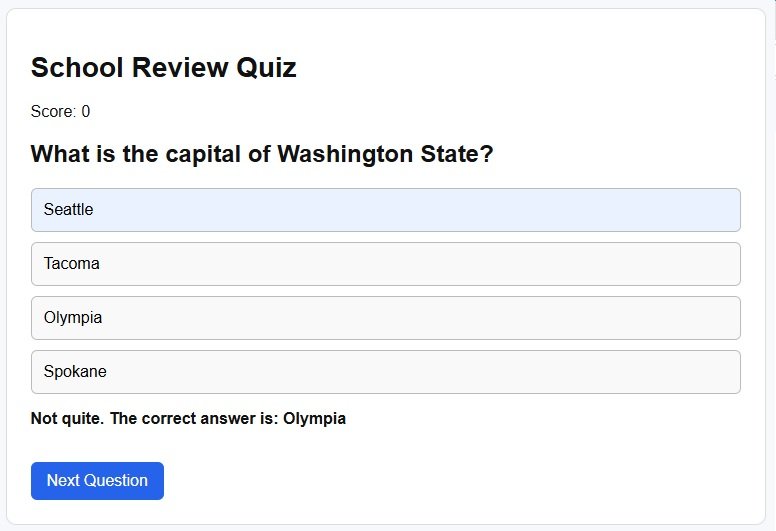
This simple quiz template lets a parent:
- Add school review questions
- Add multiple-choice answers
- Mark the correct answer
- Let the child click an answer
- Show whether the answer is correct
- Keep score
- Move to the next question
It works offline after the file is saved. That means the child does not need to log in to another website just to practice.
2. How Parents Can Use It
The basic idea is simple.
- Copy the quiz template below.
- Paste it into Notepad on Windows.
- Change only the questions and answer choices.
- Save the file as
school-review-quiz.html. - Double-click the file to open it in a browser.
The parent does not need to install anything.
3. The Quiz Template
In the code below, parents only need to edit the part called questions.
Each question has:
questionchoicesanswer
Here is the template:
<!DOCTYPE html>
<html>
<head>
  <meta charset="UTF-8">
  <title>School Review Quiz</title>
  <style>
    body {
      font-family: Arial, sans-serif;
      background: #f6f8fb;
      color: #111;
      max-width: 760px;
      margin: 40px auto;
      padding: 20px;
    }
    .quiz-box {
      background: white;
      border: 1px solid #ddd;
      border-radius: 10px;
      padding: 24px;
    }
    h1 {
      font-size: 28px;
    }
    .choice {
      display: block;
      width: 100%;
      margin: 10px 0;
      padding: 12px;
      font-size: 16px;
      text-align: left;
      border: 1px solid #bbb;
      border-radius: 6px;
      background: #f9f9f9;
      cursor: pointer;
    }
    .choice:hover {
      background: #eaf2ff;
    }
    #result {
      margin-top: 16px;
      font-weight: bold;
    }
    #nextBtn {
      margin-top: 18px;
      padding: 10px 16px;
      font-size: 16px;
      border: none;
      border-radius: 6px;
      background: #2563eb;
      color: white;
      cursor: pointer;
    }
  </style>
</head>
<body>

<div class="quiz-box">
  <h1>School Review Quiz</h1>
  <p id="score">Score: 0</p>
  <h2 id="question"></h2>
  <div id="choices"></div>
  <p id="result"></p>
  <button id="nextBtn" onclick="nextQuestion()">Next Question</button>
</div>

<script>
const questions = [
  {
    question: "What is the capital of Washington State?",
    choices: ["Seattle", "Tacoma", "Olympia", "Spokane"],
    answer: "Olympia"
  },
  {
    question: "Which word means the same as 'quick'?",
    choices: ["Fast", "Quiet", "Late", "Heavy"],
    answer: "Fast"
  },
  {
    question: "What is 7 x 8?",
    choices: ["48", "54", "56", "64"],
    answer: "56"
  }
];

let currentQuestion = 0;
let score = 0;
let answered = false;

function showQuestion() {
  answered = false;
  document.getElementById("result").textContent = "";

  const q = questions[currentQuestion];
  document.getElementById("question").textContent = q.question;

  const choicesDiv = document.getElementById("choices");
  choicesDiv.innerHTML = "";

  q.choices.forEach(choice => {
    const button = document.createElement("button");
    button.textContent = choice;
    button.className = "choice";
    button.onclick = () => checkAnswer(choice);
    choicesDiv.appendChild(button);
  });
}

function checkAnswer(choice) {
  if (answered) return;
  answered = true;

  const correctAnswer = questions[currentQuestion].answer;

  if (choice === correctAnswer) {
    score++;
    document.getElementById("result").textContent = "Correct!";
  } else {
    document.getElementById("result").textContent =
      "Not quite. The correct answer is: " + correctAnswer;
  }

  document.getElementById("score").textContent = "Score: " + score;
}

function nextQuestion() {
  currentQuestion++;

  if (currentQuestion >= questions.length) {
    document.getElementById("question").textContent = "Quiz finished!";
    document.getElementById("choices").innerHTML = "";
    document.getElementById("result").textContent =
      "Final score: " + score + " out of " + questions.length;
    document.getElementById("nextBtn").style.display = "none";
  } else {
    showQuestion();
  }
}

showQuestion();
</script>

</body>
</html>
4. How to Add Your Own Questions
Parents can replace this section:
const questions = [
  {
    question: "What is the capital of Washington State?",
    choices: ["Seattle", "Tacoma", "Olympia", "Spokane"],
    answer: "Olympia"
  }
];
with their own school questions.
For example:
const questions = [
  {
    question: "Who wrote Checkouts?",
    choices: ["Cynthia Rylant", "Gary Paulsen", "Lois Lowry", "Jerry Spinelli"],
    answer: "Cynthia Rylant"
  },
  {
    question: "What should a reader do when answering a text question?",
    choices: ["Guess quickly", "Use evidence", "Skip details", "Only read the title"],
    answer: "Use evidence"
  }
];
The most important rule is that the answer must match one of the choices exactly.
5. How to Save It on Windows
To save the quiz:
- Open Notepad.
- Paste the full HTML code.
- Click File > Save As.
- Change “Save as type” to “All Files”.
- Name the file
school-review-quiz.html. - Save it to the Desktop.
- Double-click the file.
The quiz should open in a browser.
If the file opens as plain text, the file may have been saved as school-review-quiz.html.txt. In that case, rename it and remove .txt.
6. Why This Can Help Students Review
A small quiz like this is useful because it keeps review simple. Parents can make a short quiz before a test, after reading homework, or before a vocabulary check.
It can be used for:
- Vocabulary words
- Reading comprehension
- Math facts
- Science terms
- History review
- Foreign language practice
- Spelling practice
The quiz does not replace studying, but it can make review more active than simply reading notes again.
Final Thoughts
Parents do not need to be professional programmers to make a useful study tool. A simple HTML quiz can turn school review into something more interactive.
The best part is that the template can be reused. Once the basic quiz file is ready, parents only need to change the questions and answers for the next subject.
Leave a Reply