A busy school day can pass quickly without leaving enough time for reading, homework, or music practice. In our home, the challenge is not a lack of activities. It is fitting school, reading, violin practice, meals, breaks, and free time into a routine that feels realistic.
When the plan exists only in a parent’s memory, a child may not know what comes next. We may also lose time repeatedly deciding when to start an activity. A visible daily schedule can reduce that uncertainty without turning every minute into work.
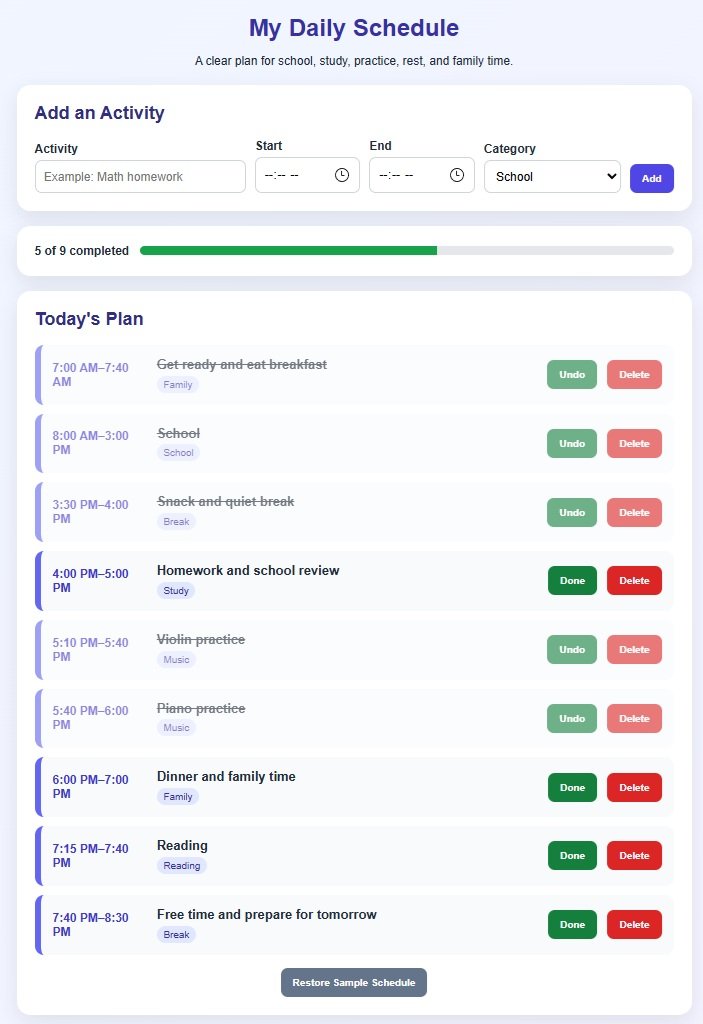
The program below creates a simple schedule in one HTML file. It already includes sample entries for school, reading, and violin practice. You can add new activities, mark them complete, or delete activities that are no longer needed. The schedule is saved in the browser automatically.
1. What This Daily Schedule Can Do
- Add an activity with a start and end time
- Group activities as school, study, reading, music, break, or family time
- Display activities in time order
- Mark completed activities
- Show how many activities are finished
- Delete unwanted entries
- Restore the sample schedule
- Save changes in the browser
2. Copy the Complete HTML Template
Open Notepad and copy all of the code below:
<!DOCTYPE html>
<html lang="en">
<head>
  <meta charset="UTF-8">
  <meta name="viewport" content="width=device-width, initial-scale=1.0">
  <title>My Daily Schedule</title>
  <style>
    * { box-sizing: border-box; }
    body { margin: 0; padding: 24px; min-height: 100vh; font-family: Arial, sans-serif; color: #1f2937; background: linear-gradient(135deg,#eff6ff,#f5f3ff); }
    .container { width: min(900px,100%); margin: auto; }
    header { text-align: center; margin-bottom: 22px; }
    h1 { color: #3730a3; margin-bottom: 8px; }
    h2 { margin-top: 0; color: #312e81; }
    .panel { background: white; padding: 24px; margin-bottom: 20px; border-radius: 18px; box-shadow: 0 10px 28px rgba(31,41,55,.1); }
    form { display: grid; grid-template-columns: 2fr 1fr 1fr 1.3fr auto; gap: 12px; align-items: end; }
    label { display: block; margin-bottom: 6px; font-weight: bold; }
    input, select { width: 100%; padding: 11px; border: 2px solid #d1d5db; border-radius: 9px; font: inherit; }
    input:focus, select:focus { outline: none; border-color: #6366f1; }
    button { border: 0; border-radius: 9px; padding: 12px 16px; color: white; background: #4f46e5; font-weight: bold; cursor: pointer; }
    button:hover { filter: brightness(.94); }
    .summary { display: flex; justify-content: space-between; gap: 15px; align-items: center; }
    .progress-track { flex: 1; height: 12px; background: #e5e7eb; border-radius: 999px; overflow: hidden; }
    .progress-bar { height: 100%; width: 0; background: #16a34a; transition: width .25s; }
    .schedule { display: grid; gap: 12px; }
    .item { display: grid; grid-template-columns: 125px 1fr auto auto; align-items: center; gap: 14px; padding: 16px; border-left: 8px solid #6366f1; border-radius: 12px; background: #f8fafc; }
    .item.completed { opacity: .62; }
    .item.completed .activity { text-decoration: line-through; }
    .time { font-weight: bold; color: #4338ca; }
    .activity { font-size: 1.08rem; font-weight: bold; }
    .category { display: inline-block; margin-top: 5px; padding: 4px 9px; border-radius: 999px; background: #e0e7ff; color: #3730a3; font-size: .82rem; }
    .complete { background: #15803d; }
    .delete { background: #dc2626; }
    .footer-actions { display: flex; justify-content: center; margin-top: 18px; }
    .reset { background: #64748b; }
    .empty { text-align: center; color: #6b7280; padding: 24px; }
    @media(max-width:760px){ form{grid-template-columns:1fr 1fr} .wide{grid-column:1/-1} .item{grid-template-columns:1fr} .item button{width:100%} }
  </style>
</head>
<body>
  <main class="container">
    <header>
      <h1>My Daily Schedule</h1>
      <p>A clear plan for school, study, practice, rest, and family time.</p>
    </header>

    <section class="panel">
      <h2>Add an Activity</h2>
      <form id="scheduleForm">
        <div class="wide"><label for="activity">Activity</label><input id="activity" required placeholder="Example: Math homework"></div>
        <div><label for="startTime">Start</label><input id="startTime" type="time" required></div>
        <div><label for="endTime">End</label><input id="endTime" type="time" required></div>
        <div><label for="category">Category</label><select id="category"><option>School</option><option>Study</option><option>Reading</option><option>Music</option><option>Break</option><option>Family</option></select></div>
        <button type="submit">Add</button>
      </form>
    </section>

    <section class="panel summary">
      <strong id="progressText">0 of 0 completed</strong>
      <div class="progress-track"><div class="progress-bar" id="progressBar"></div></div>
    </section>

    <section class="panel">
      <h2>Today's Plan</h2>
      <div class="schedule" id="scheduleList"></div>
      <div class="footer-actions"><button class="reset" id="resetButton">Restore Sample Schedule</button></div>
    </section>
  </main>

  <script>
    const storageKey = "familyDailySchedule";
    const sampleSchedule = [
      { id: 1, activity: "Get ready and eat breakfast", start: "07:00", end: "07:40", category: "Family", completed: false },
      { id: 2, activity: "School", start: "08:00", end: "15:00", category: "School", completed: false },
      { id: 3, activity: "Snack and quiet break", start: "15:30", end: "16:00", category: "Break", completed: false },
      { id: 4, activity: "Homework and school review", start: "16:00", end: "17:00", category: "Study", completed: false },
      { id: 5, activity: "Violin practice", start: "17:10", end: "17:40", category: "Music", completed: false },
      { id: 6, activity: "Dinner and family time", start: "18:00", end: "19:00", category: "Family", completed: false },
      { id: 7, activity: "Reading", start: "19:15", end: "19:40", category: "Reading", completed: false },
      { id: 8, activity: "Free time and prepare for tomorrow", start: "19:40", end: "20:30", category: "Break", completed: false }
    ];

    let schedule = JSON.parse(localStorage.getItem(storageKey)) || structuredClone(sampleSchedule);
    const list = document.getElementById("scheduleList");

    function save(){ localStorage.setItem(storageKey, JSON.stringify(schedule)); }
    function displayTime(time){ const [h,m]=time.split(":"); const hour=Number(h); return `${hour%12||12}:${m} ${hour>=12?"PM":"AM"}`; }

    function render(){
      list.innerHTML = "";
      schedule.sort((a,b)=>a.start.localeCompare(b.start));
      if(!schedule.length){ list.innerHTML='<p class="empty">No activities have been added.</p>'; }

      schedule.forEach(item=>{
        const row=document.createElement("div");
        row.className=`item${item.completed?" completed":""}`;

        const time=document.createElement("div"); time.className="time"; time.textContent=`${displayTime(item.start)}–${displayTime(item.end)}`;
        const details=document.createElement("div");
        const name=document.createElement("div"); name.className="activity"; name.textContent=item.activity;
        const tag=document.createElement("span"); tag.className="category"; tag.textContent=item.category;
        details.append(name,tag);

        const done=document.createElement("button"); done.className="complete"; done.textContent=item.completed?"Undo":"Done"; done.onclick=()=>toggle(item.id);
        const remove=document.createElement("button"); remove.className="delete"; remove.textContent="Delete"; remove.onclick=()=>removeItem(item.id);
        row.append(time,details,done,remove); list.appendChild(row);
      });

      const completed=schedule.filter(item=>item.completed).length;
      document.getElementById("progressText").textContent=`${completed} of ${schedule.length} completed`;
      document.getElementById("progressBar").style.width=schedule.length?`${completed/schedule.length*100}%`:"0%";
    }

    function toggle(id){ const item=schedule.find(item=>item.id===id); item.completed=!item.completed; save(); render(); }
    function removeItem(id){ if(confirm("Delete this activity?")){ schedule=schedule.filter(item=>item.id!==id); save(); render(); } }

    document.getElementById("scheduleForm").addEventListener("submit",event=>{
      event.preventDefault();
      const start=document.getElementById("startTime").value;
      const end=document.getElementById("endTime").value;
      if(end<=start){ alert("The end time must be later than the start time."); return; }
      schedule.push({ id:Date.now(), activity:document.getElementById("activity").value.trim(), start, end, category:document.getElementById("category").value, completed:false });
      save(); event.target.reset(); render();
    });

    document.getElementById("resetButton").addEventListener("click",()=>{
      if(confirm("Replace the current schedule with the sample schedule?")){ schedule=structuredClone(sampleSchedule); save(); render(); }
    });

    render();
  </script>
</body>
</html>
3. Save and Open the Schedule
- In Notepad, select File → Save As.
- Name the file
daily-schedule.html. - Change Save as type to All Files.
- Select UTF-8 and save it.
- Double-click the saved file to open it in a browser.
If it opens as text, check that the file is not named daily-schedule.html.txt.
4. Adjust the Sample Schedule
The included schedule is only a starting point. School is shown from 8:00 AM to 3:00 PM, followed by a break, homework, violin practice, dinner, reading, and free time. Use the form to add your own activities and delete entries that do not fit your family.
Avoid filling every open minute. A schedule becomes difficult to follow when it does not include transition time, meals, or rest. Leaving 10 minutes between homework and violin practice can make both activities easier to begin.
5. Use the Schedule to Reduce Wasted Time
The greatest benefit is reducing repeated decisions. Instead of asking, “What should we do now?” after school, the next activity is already visible.
A practical routine is:
- Check the schedule after arriving home.
- Complete the highest-priority school task first.
- Keep violin practice focused and reasonably short.
- Use reading as a regular daily block rather than waiting for extra time.
- Mark each activity complete and move on.
The goal is not to make a child busy all day. Free time belongs on the schedule too. A balanced plan helps protect rest while preventing important activities from being forgotten.
6. How the Schedule Is Saved
The program uses the browser’s localStorage. Changes normally remain after the page is closed. Always use the same HTML file and browser. Records may be lost if browser data is cleared, a private window is used, or the file is opened on another computer.
7. Troubleshooting
Activities are not in the order entered
The program sorts activities by starting time automatically. This keeps the day in chronological order.
An activity cannot be added
Make sure the activity name, start time, and end time are entered. The ending time must be later than the starting time.
The original examples disappeared
Select Restore Sample Schedule. This replaces the current entries, so use it only when you are ready to reset the schedule.
Final Thoughts
A useful schedule should provide direction without making family life rigid. For us, the important pieces are school responsibilities, a realistic reading period, regular violin practice, and enough breaks to make the plan sustainable.
Start with only the activities that matter most. After using the schedule for several days, adjust the times based on what actually works. A plan that can be followed is more valuable than a perfect-looking timetable that is too crowded.
Leave a Reply