A smartphone already has a timer, but opening the phone can create a new problem. A child may notice a notification, open YouTube, or move to another app before the reading session even begins. What was supposed to be a 20-minute reading period can easily turn into screen time.
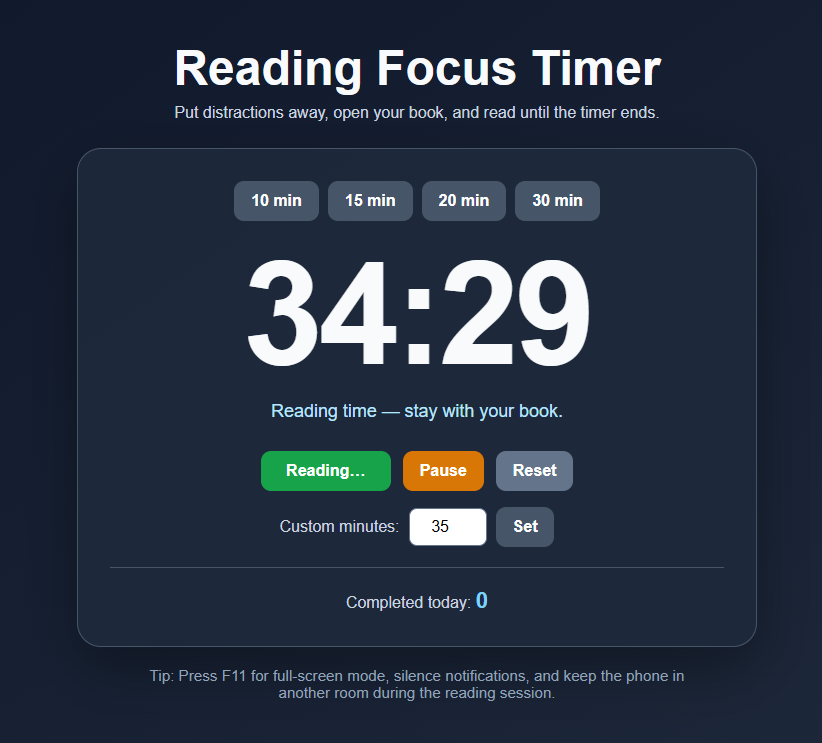
I wanted a timer with only one purpose: display the remaining reading time in large numbers and make it obvious when the session is complete. The web timer below can run from one HTML file on a computer. It does not show videos, recommendations, messages, or advertisements.
The timer includes 10-, 15-, 20-, and 30-minute choices, as well as a custom setting. It can be paused or reset, plays a gentle sound at the end, and remembers how many sessions were completed today.
1. Copy the Reading Timer Code
Open Notepad and copy all of the following code:
<!DOCTYPE html>
<html lang="en">
<head>
  <meta charset="UTF-8">
  <meta name="viewport" content="width=device-width, initial-scale=1.0">
  <title>Reading Focus Timer</title>
  <style>
    * { box-sizing: border-box; }
    body { margin: 0; min-height: 100vh; display: grid; place-items: center; padding: 22px; font-family: Arial, sans-serif; color: #f8fafc; background: linear-gradient(145deg,#0f172a,#1e293b); }
    .app { width: min(680px,100%); text-align: center; }
    h1 { margin: 0 0 8px; font-size: clamp(2rem,5vw,3rem); }
    .subtitle { margin: 0 0 26px; color: #cbd5e1; }
    .card { padding: 32px; border: 1px solid #475569; border-radius: 24px; background: rgba(30,41,59,.88); box-shadow: 0 20px 60px rgba(0,0,0,.35); }
    .presets { display: flex; flex-wrap: wrap; justify-content: center; gap: 9px; margin-bottom: 22px; }
    button, input { font: inherit; }
    button { padding: 11px 17px; border: 0; border-radius: 10px; font-weight: bold; cursor: pointer; color: white; background: #475569; }
    button:hover { filter: brightness(1.12); }
    .preset.active { background: #0ea5e9; }
    .timer { margin: 14px 0; font-size: clamp(5rem,20vw,9rem); line-height: 1; font-variant-numeric: tabular-nums; font-weight: bold; letter-spacing: -4px; }
    .message { min-height: 28px; color: #bae6fd; font-size: 1.12rem; }
    .controls { display: flex; flex-wrap: wrap; justify-content: center; gap: 12px; margin-top: 22px; }
    .start { background: #16a34a; min-width: 130px; }
    .pause { background: #d97706; }
    .reset { background: #64748b; }
    .custom { display: flex; justify-content: center; align-items: center; gap: 9px; margin-top: 16px; color: #cbd5e1; }
    input { width: 78px; padding: 9px; border: 1px solid #64748b; border-radius: 8px; text-align: center; }
    .stats { margin-top: 20px; padding-top: 20px; border-top: 1px solid #475569; color: #cbd5e1; }
    .stats strong { color: #7dd3fc; font-size: 1.4rem; }
    .focus-note { margin: 20px auto 0; max-width: 560px; color: #94a3b8; font-size: .95rem; }
    body.finished { background: linear-gradient(145deg,#064e3b,#065f46); }
  </style>
</head>
<body>
  <main class="app">
    <h1>Reading Focus Timer</h1>
    <p class="subtitle">Put distractions away, open your book, and read until the timer ends.</p>

    <section class="card">
      <div class="presets" id="presets">
        <button class="preset" data-minutes="10">10 min</button>
        <button class="preset" data-minutes="15">15 min</button>
        <button class="preset active" data-minutes="20">20 min</button>
        <button class="preset" data-minutes="30">30 min</button>
      </div>

      <div class="timer" id="timer">20:00</div>
      <div class="message" id="message">Choose a time and press Start.</div>

      <div class="controls">
        <button class="start" id="startButton">Start Reading</button>
        <button class="pause" id="pauseButton">Pause</button>
        <button class="reset" id="resetButton">Reset</button>
      </div>

      <div class="custom">
        <label for="customMinutes">Custom minutes:</label>
        <input id="customMinutes" type="number" min="1" max="180" value="20">
        <button id="setCustomButton">Set</button>
      </div>

      <div class="stats">Completed today: <strong id="sessionCount">0</strong></div>
    </section>

    <p class="focus-note">Tip: Press F11 for full-screen mode, silence notifications, and keep the phone in another room during the reading session.</p>
  </main>

  <script>
    let selectedSeconds = 20 * 60;
    let remainingSeconds = selectedSeconds;
    let timerId = null;
    let endTime = null;

    const timerDisplay = document.getElementById("timer");
    const message = document.getElementById("message");
    const startButton = document.getElementById("startButton");
    const todayKey = new Date().toISOString().split("T")[0];
    const savedStats = JSON.parse(localStorage.getItem("readingTimerStats")) || {};
    let sessionsToday = savedStats.date === todayKey ? savedStats.count : 0;

    document.getElementById("sessionCount").textContent = sessionsToday;

    function displayTime() {
      const minutes = Math.floor(remainingSeconds / 60);
      const seconds = remainingSeconds % 60;
      timerDisplay.textContent = `${String(minutes).padStart(2,"0")}:${String(seconds).padStart(2,"0")}`;
      document.title = `${timerDisplay.textContent} — Reading Timer`;
    }

    function chooseMinutes(minutes) {
      clearInterval(timerId);
      timerId = null;
      selectedSeconds = minutes * 60;
      remainingSeconds = selectedSeconds;
      startButton.textContent = "Start Reading";
      message.textContent = `${minutes}-minute reading session ready.`;
      document.body.classList.remove("finished");
      displayTime();
    }

    function startTimer() {
      if (timerId || remainingSeconds <= 0) return;
      endTime = Date.now() + remainingSeconds * 1000;
      message.textContent = "Reading time — stay with your book.";
      startButton.textContent = "Reading…";

      timerId = setInterval(() => {
        remainingSeconds = Math.max(0, Math.ceil((endTime - Date.now()) / 1000));
        displayTime();
        if (remainingSeconds === 0) finishSession();
      }, 250);
    }

    function pauseTimer() {
      if (!timerId) return;
      clearInterval(timerId);
      timerId = null;
      remainingSeconds = Math.max(0, Math.ceil((endTime - Date.now()) / 1000));
      startButton.textContent = "Continue Reading";
      message.textContent = "Paused. Continue when you are ready.";
      displayTime();
    }

    function resetTimer() {
      clearInterval(timerId);
      timerId = null;
      remainingSeconds = selectedSeconds;
      startButton.textContent = "Start Reading";
      message.textContent = "Timer reset. Open your book when ready.";
      document.body.classList.remove("finished");
      displayTime();
    }

    function playChime() {
      const audio = new (window.AudioContext || window.webkitAudioContext)();
      [523.25, 659.25, 783.99].forEach((frequency, index) => {
        const oscillator = audio.createOscillator();
        const gain = audio.createGain();
        oscillator.frequency.value = frequency;
        gain.gain.setValueAtTime(0.18, audio.currentTime + index * 0.25);
        gain.gain.exponentialRampToValueAtTime(0.001, audio.currentTime + index * 0.25 + 0.55);
        oscillator.connect(gain).connect(audio.destination);
        oscillator.start(audio.currentTime + index * 0.25);
        oscillator.stop(audio.currentTime + index * 0.25 + 0.6);
      });
    }

    function finishSession() {
      clearInterval(timerId);
      timerId = null;
      sessionsToday++;
      localStorage.setItem("readingTimerStats", JSON.stringify({ date: todayKey, count: sessionsToday }));
      document.getElementById("sessionCount").textContent = sessionsToday;
      document.body.classList.add("finished");
      startButton.textContent = "Completed";
      message.textContent = "Reading session complete — great work!";
      document.title = "Reading Complete!";
      playChime();
    }

    document.querySelectorAll(".preset").forEach(button => {
      button.addEventListener("click", () => {
        document.querySelectorAll(".preset").forEach(item => item.classList.remove("active"));
        button.classList.add("active");
        chooseMinutes(Number(button.dataset.minutes));
      });
    });

    document.getElementById("setCustomButton").addEventListener("click", () => {
      const minutes = Number(document.getElementById("customMinutes").value);
      if (!Number.isInteger(minutes) || minutes < 1 || minutes > 180) {
        alert("Enter a whole number from 1 to 180.");
        return;
      }
      document.querySelectorAll(".preset").forEach(item => item.classList.remove("active"));
      chooseMinutes(minutes);
    });

    startButton.addEventListener("click", startTimer);
    document.getElementById("pauseButton").addEventListener("click", pauseTimer);
    document.getElementById("resetButton").addEventListener("click", resetTimer);
    displayTime();
  </script>
</body>
</html>
2. Save and Open the Timer
- In Notepad, select File → Save As.
- Enter
reading-focus-timer.html. - Choose All Files for the file type.
- Select UTF-8 and save the file.
- Double-click the file to open it in Chrome, Edge, or Firefox.
If the browser displays code instead of the timer, make sure the file does not end in .txt.
3. Use It for a Focused Reading Session
Choose 10, 15, 20, or 30 minutes and select Start Reading. The remaining time appears in large numbers. The timer can be paused if the child needs a necessary break, and Reset returns it to the selected length.
For fewer distractions:
- Put the phone in another room or hand it to a parent.
- Close unrelated browser tabs.
- Press
F11on Windows to display the timer full screen. - Keep only the book, timer, and any required worksheet nearby.
- Begin with a realistic reading period rather than the longest option.
The web timer cannot technically block YouTube or prevent another tab from being opened. Its purpose is to create a clean, single-purpose screen. Browser parental controls or a separate website blocker would be required for actual blocking.
4. Choosing the Right Reading Time
A longer timer is not always better. Ten or fifteen focused minutes may be more useful than thirty minutes interrupted by frustration.
- 10 minutes: A gentle starting point or a difficult reading day
- 15 minutes: Short homework reading
- 20 minutes: A practical everyday reading session
- 30 minutes: Longer independent reading when attention is steady
We can increase the time gradually after the routine becomes comfortable. The completed-session count is meant to encourage consistency, not to grade reading speed.
5. Why the Timer Uses the Actual End Time
Some simple web timers subtract one second at every interval. That approach can become inaccurate when a browser slows down or a computer briefly becomes busy. This timer records the intended ending time and repeatedly calculates the difference. That helps the displayed countdown stay closer to the real elapsed time.
6. Troubleshooting
No sound plays at the end
Check the computer volume and make sure the browser tab is not muted. Browsers may restrict sound until the user interacts with the page, so always press the Start button rather than expecting the timer to begin automatically.
The timer stops when the computer sleeps
The code can correct the displayed time after a brief browser delay, but it cannot keep a sleeping computer awake. Temporarily adjust the Windows sleep setting or interact with the computer before it goes to sleep.
The completed count disappeared
The count is saved in the current browser and resets for a new date. Clearing browser data, using a private window, or changing browsers may remove it.
Final Thoughts
The most important feature of this timer is its simplicity. It gives a child one visible task: keep reading until the countdown ends. There are no recommended videos or messages competing for attention on the page.
Start with a manageable time, use the same reading place when possible, and end the session when the chime sounds. A repeatable 15- or 20-minute routine can be more sustainable than waiting for a large block of free time.