
A phone is not the only source of distraction during reading time. Even when the phone is put away, YouTube is still available on the family computer. A child may open the browser to check one video and then spend much longer watching recommended videos.
I wanted a simple way to make the computer less distracting during reading, homework, or violin practice. A browser bookmark or a reminder was not enough. The solution in this guide is a small Windows program with Block YouTube and Unblock YouTube buttons.
The program adds a clearly marked section to the Windows hosts file. Windows can use this local file when resolving website names, and the program clears the DNS resolver cache after making a change. Microsoft documents both the Windows Hosts file and the ipconfig /flushdns command.
This is a reversible household focus tool, not an unbreakable security system. A technically knowledgeable user, a VPN, a proxy, or an administrator account can bypass it. For stronger child-account controls, Microsoft Family Safety can block websites and manage limits, although Microsoft’s web filtering is designed around supported browsers such as Edge.
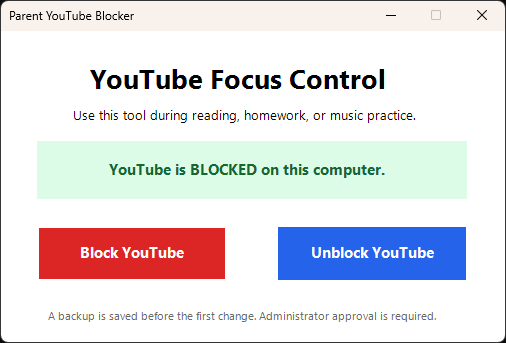
1. What the YouTube Blocker Does
The program:
- Requires Windows administrator approval
- Creates a backup before changing the hosts file
- Blocks common YouTube website addresses
- Provides a one-click unblock option
- Changes only the section that this program created
- Clears the Windows DNS cache after each change
- Shows whether YouTube is currently blocked
Because changing the hosts file requires administrator rights, the parent should use an administrator account while the child uses a standard Windows account.
2. Copy the PowerShell Program
Open Notepad and copy all of the code below:
# Parent Tech Notes - Simple YouTube Blocker
# Run only on a Windows computer that you own or manage.

Add-Type -AssemblyName System.Windows.Forms
Add-Type -AssemblyName System.Drawing

# Ask for administrator permission when needed.
$currentUser = [Security.Principal.WindowsIdentity]::GetCurrent()
$principal = New-Object Security.Principal.WindowsPrincipal($currentUser)
$isAdmin = $principal.IsInRole([Security.Principal.WindowsBuiltInRole]::Administrator)

if (-not $isAdmin) {
    $arguments = "-NoProfile -ExecutionPolicy Bypass -File `"$PSCommandPath`""
    Start-Process powershell.exe -Verb RunAs -ArgumentList $arguments
    exit
}

$hostsPath = Join-Path $env:SystemRoot "System32\drivers\etc\hosts"
$backupPath = "$hostsPath.parent-tech-notes-backup"
$beginMarker = "# BEGIN Parent Tech Notes YouTube Block"
$endMarker = "# END Parent Tech Notes YouTube Block"

$youtubeEntries = @"
$beginMarker
0.0.0.0 youtube.com
0.0.0.0 www.youtube.com
0.0.0.0 m.youtube.com
0.0.0.0 music.youtube.com
0.0.0.0 kids.youtube.com
0.0.0.0 youtu.be
0.0.0.0 www.youtu.be
0.0.0.0 youtube-nocookie.com
0.0.0.0 www.youtube-nocookie.com
$endMarker
"@

function Get-HostsText {
    if (Test-Path $hostsPath) {
        return [IO.File]::ReadAllText($hostsPath)
    }
    return ""
}

function Remove-ProgramBlock([string]$text) {
    $pattern = "(?ms)\r?\n?" + [regex]::Escape($beginMarker) +
               ".*?" + [regex]::Escape($endMarker) + "\r?\n?"
    return ([regex]::Replace($text, $pattern, "`r`n")).TrimEnd() + "`r`n"
}

function Save-HostsText([string]$text) {
    [IO.File]::WriteAllText($hostsPath, $text, [Text.Encoding]::ASCII)
    & ipconfig.exe /flushdns | Out-Null
}

function Test-YouTubeBlocked {
    return (Get-HostsText).Contains($beginMarker)
}

function Update-Status {
    if (Test-YouTubeBlocked) {
        $statusLabel.Text = "YouTube is BLOCKED on this computer."
        $statusLabel.ForeColor = [Drawing.Color]::FromArgb(22, 101, 52)
        $statusPanel.BackColor = [Drawing.Color]::FromArgb(220, 252, 231)
    }
    else {
        $statusLabel.Text = "YouTube is currently available."
        $statusLabel.ForeColor = [Drawing.Color]::FromArgb(153, 27, 27)
        $statusPanel.BackColor = [Drawing.Color]::FromArgb(254, 226, 226)
    }
}

function Block-YouTube {
    try {
        if (-not (Test-Path $backupPath)) {
            Copy-Item $hostsPath $backupPath -Force
        }

        $cleanText = Remove-ProgramBlock (Get-HostsText)
        $newText = $cleanText.TrimEnd() + "`r`n`r`n" + $youtubeEntries.Trim() + "`r`n"
        Save-HostsText $newText
        Update-Status

        [Windows.Forms.MessageBox]::Show(
            "YouTube has been blocked. Close and reopen any YouTube browser tabs.",
            "YouTube Blocker",
            "OK",
            "Information"
        ) | Out-Null
    }
    catch {
        [Windows.Forms.MessageBox]::Show(
            "The blocker could not update Windows.`n`n$($_.Exception.Message)",
            "YouTube Blocker",
            "OK",
            "Error"
        ) | Out-Null
    }
}

function Unblock-YouTube {
    try {
        $cleanText = Remove-ProgramBlock (Get-HostsText)
        Save-HostsText $cleanText
        Update-Status

        [Windows.Forms.MessageBox]::Show(
            "YouTube has been unblocked. Reopen the browser if the site does not load immediately.",
            "YouTube Blocker",
            "OK",
            "Information"
        ) | Out-Null
    }
    catch {
        [Windows.Forms.MessageBox]::Show(
            "The blocker could not update Windows.`n`n$($_.Exception.Message)",
            "YouTube Blocker",
            "OK",
            "Error"
        ) | Out-Null
    }
}

$form = New-Object Windows.Forms.Form
$form.Text = "Parent YouTube Blocker"
$form.Size = New-Object Drawing.Size(520, 350)
$form.StartPosition = "CenterScreen"
$form.FormBorderStyle = "FixedDialog"
$form.MaximizeBox = $false
$form.BackColor = [Drawing.Color]::White

$title = New-Object Windows.Forms.Label
$title.Text = "YouTube Focus Control"
$title.Font = New-Object Drawing.Font("Segoe UI", 20, [Drawing.FontStyle]::Bold)
$title.AutoSize = $true
$title.Location = New-Object Drawing.Point(85, 28)
$form.Controls.Add($title)

$description = New-Object Windows.Forms.Label
$description.Text = "Use this tool during reading, homework, or music practice."
$description.Font = New-Object Drawing.Font("Segoe UI", 10)
$description.AutoSize = $true
$description.Location = New-Object Drawing.Point(70, 75)
$form.Controls.Add($description)

$statusPanel = New-Object Windows.Forms.Panel
$statusPanel.Size = New-Object Drawing.Size(430, 58)
$statusPanel.Location = New-Object Drawing.Point(36, 110)
$form.Controls.Add($statusPanel)

$statusLabel = New-Object Windows.Forms.Label
$statusLabel.Font = New-Object Drawing.Font("Segoe UI", 11, [Drawing.FontStyle]::Bold)
$statusLabel.AutoSize = $true
$statusLabel.Location = New-Object Drawing.Point(70, 18)
$statusPanel.Controls.Add($statusLabel)

$blockButton = New-Object Windows.Forms.Button
$blockButton.Text = "Block YouTube"
$blockButton.Size = New-Object Drawing.Size(190, 55)
$blockButton.Location = New-Object Drawing.Point(36, 195)
$blockButton.BackColor = [Drawing.Color]::FromArgb(220, 38, 38)
$blockButton.ForeColor = [Drawing.Color]::White
$blockButton.FlatStyle = "Flat"
$blockButton.Font = New-Object Drawing.Font("Segoe UI", 11, [Drawing.FontStyle]::Bold)
$blockButton.Add_Click({ Block-YouTube })
$form.Controls.Add($blockButton)

$unblockButton = New-Object Windows.Forms.Button
$unblockButton.Text = "Unblock YouTube"
$unblockButton.Size = New-Object Drawing.Size(190, 55)
$unblockButton.Location = New-Object Drawing.Point(276, 195)
$unblockButton.BackColor = [Drawing.Color]::FromArgb(37, 99, 235)
$unblockButton.ForeColor = [Drawing.Color]::White
$unblockButton.FlatStyle = "Flat"
$unblockButton.Font = New-Object Drawing.Font("Segoe UI", 11, [Drawing.FontStyle]::Bold)
$unblockButton.Add_Click({ Unblock-YouTube })
$form.Controls.Add($unblockButton)

$note = New-Object Windows.Forms.Label
$note.Text = "A backup is saved before the first change. Administrator approval is required."
$note.Font = New-Object Drawing.Font("Segoe UI", 8.5)
$note.ForeColor = [Drawing.Color]::DimGray
$note.AutoSize = $true
$note.Location = New-Object Drawing.Point(45, 277)
$form.Controls.Add($note)

Update-Status
[void]$form.ShowDialog()
3. Save the Program Correctly
- In Notepad, select File → Save As.
- Enter
Parent-YouTube-Blocker.ps1as the file name. - Change Save as type to All Files.
- Select UTF-8 and save the file in a folder that only the parent uses.
Do not save it as .txt. In File Explorer, enable View → Show → File name extensions if the complete name is hidden.
4. Run the Program
PowerShell scripts may not run by double-clicking. Use this straightforward method:
- Find the
Parent-YouTube-Blocker.ps1file in File Explorer. - Hold the Shift key and right-click the file.
- Select Copy as path. In some versions of Windows 11, you may need to select Show more options first.
- Right-click the Windows Start button and select Terminal (Admin).
- Approve the User Account Control prompt.
- Type the following command and leave one space at the end:
powershell.exe -NoProfile -ExecutionPolicy Bypass -File- Press Ctrl + V to paste the copied file path after the command.
- Press Enter.
The completed command should look similar to this:
powershell.exe -NoProfile -ExecutionPolicy Bypass -File "C:\Users\Parent\Desktop\Parent-YouTube-Blocker.ps1"Keep the quotation marks around the file path. If the Desktop is managed by OneDrive, the path may include OneDrive\Desktop.
Dragging the script from File Explorer into an administrator Terminal window may not work because Windows can prevent drag-and-drop between a regular File Explorer window and an elevated application. Copy as path avoids that problem.
The bypass option applies to that one PowerShell launch. It does not permanently lower the computer’s execution policy.
5. Block and Unblock YouTube
Select Block YouTube before reading, homework, or violin practice. Close existing YouTube tabs and reopen the browser. Direct visits to the common YouTube addresses should fail.
When YouTube is needed for an approved lesson, run the same program and select Unblock YouTube. The program removes only the text between its own beginning and ending markers.
The first time the program blocks YouTube, it creates this backup next to the hosts file:
hosts.parent-tech-notes-backupThe unblock button normally makes restoring that backup unnecessary. The backup is an additional precaution.
6. Make the Block Harder for a Child to Remove
The most important step is account separation:
- Keep the parent’s Windows account as an administrator.
- Give the child a standard Windows account.
- Do not share the administrator password or PIN.
- Keep the blocker script in the parent’s private folder.
- Block YouTube before the child begins the focused activity.
If the child has administrator access, the child can edit the hosts file or run the unblock button. This program is most useful when the parent controls administrator approval.
7. Important Limitations
This program blocks common YouTube website addresses on one Windows computer. It does not:
- Block the YouTube phone or TV app
- Control another computer on the network
- Prevent access through every VPN or proxy
- Guarantee that every embedded YouTube video is blocked
- Create a timed automatic unblock schedule
It may also affect YouTube videos embedded in school websites. Use Unblock YouTube temporarily when a teacher assigns a required video.
For stronger controls across a child’s Microsoft account, Microsoft Family Safety is the better long-term option. Microsoft says family organizers can manage blocked apps and sites and screen-time limits.
8. Troubleshooting
YouTube still opens in an existing tab
Close every YouTube tab and completely restart the browser. Confirm that the program status says YouTube is blocked.
The program displays an access error
The hosts file requires administrator permission. Close the program and launch it through Terminal (Admin).
Windows Security warns about the script
Only run code that you have reviewed and saved yourself. The script changes a protected networking file, so Windows may request confirmation. Do not download a modified copy from an unknown website.
YouTube remains blocked after selecting Unblock
Close and reopen the browser. If necessary, restart Windows. The program already runs ipconfig /flushdns, the Windows command used to clear the DNS client resolver cache.
Final Thoughts
Blocking YouTube does not replace a family routine, but it removes one easy path to distraction. During reading time, the computer can stay available for a dictionary, school document, or reading timer without placing YouTube one click away.
The best setup is simple: use a standard account for the child, keep administrator access with the parent, block YouTube before the activity begins, and unblock it only when there is a clear reason to use it.