
Tag: offline learning tool

  • A Simple HTML Reading Logbook Kids Can Keep Using

    A Simple HTML Reading Logbook Kids Can Keep Using

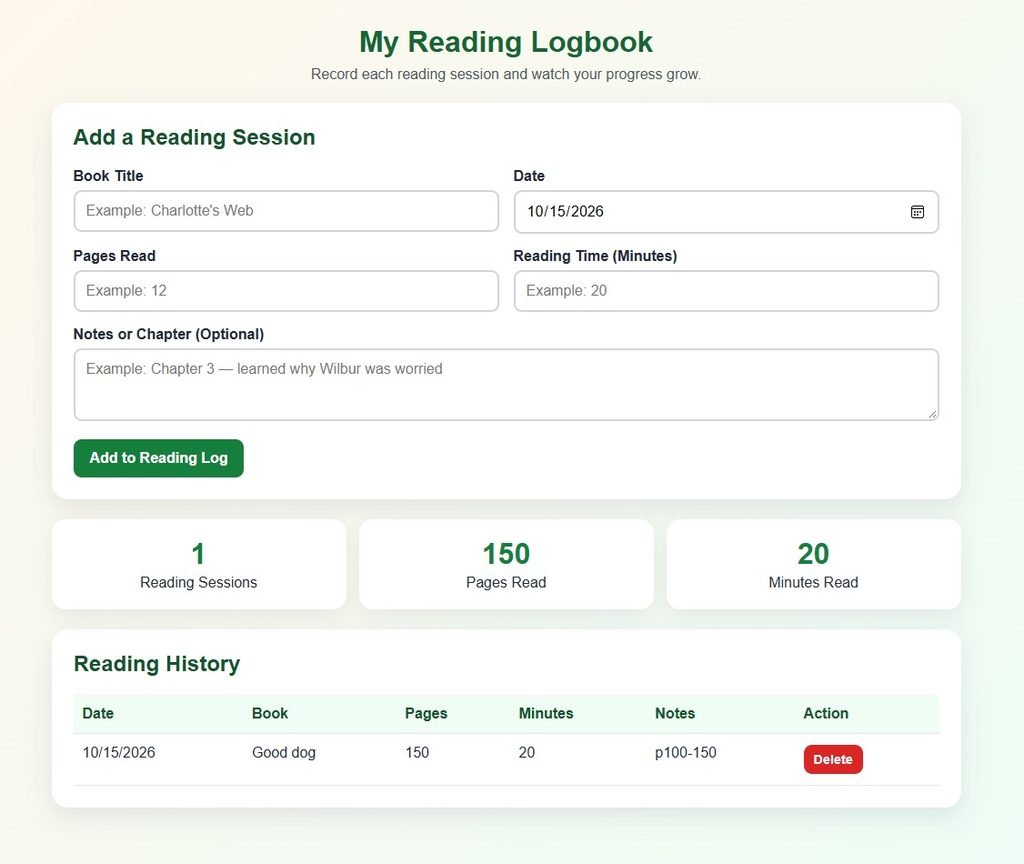
    Daily Reading Log example

    Reading regularly is easier to encourage when a child can see the progress being made. The difficult part in our home was not simply choosing a book. We needed a consistent way to remember when the reading happened, how many pages were completed, and how much time was spent reading.

    Without a log, one reading session could easily blend into the next. It was also difficult to tell whether reading had become a steady routine or had been skipped for several days. A paper chart can work, but it may be misplaced or forgotten. I wanted one simple file that we could open on the computer after each reading session.

    The HTML reading logbook in this guide records the book title, pages read, reading time, date, and an optional note. It also calculates the total pages and minutes automatically. The entries remain saved in the same browser, even after the page is closed.

    1. What This Reading Logbook Can Do

    The program lets a parent or child:

    • Enter a book title
    • Record the number of pages read
    • Record reading time in minutes
    • Select the reading date
    • Add a short note or chapter name
    • See total sessions, pages, and minutes
    • Delete an incorrect entry
    • Keep the records after closing the browser

    It runs from one HTML file and does not require an account, subscription, or internet connection.

    2. What You Need

    You only need:

    1. A Windows computer
    2. Notepad
    3. A browser such as Chrome, Edge, or Firefox

    No special programming software is required.

    3. Copy This Reading Logbook Template

    Open Notepad and copy the complete code below:

    <!DOCTYPE html>
    <html lang="en">
    <head>
      <meta charset="UTF-8">
      <meta name="viewport" content="width=device-width, initial-scale=1.0">
      <title>My Reading Logbook</title>
      <style>
        * { box-sizing: border-box; }
    
        body {
          margin: 0;
          padding: 24px;
          min-height: 100vh;
          font-family: Arial, sans-serif;
          color: #1f2937;
          background: linear-gradient(135deg, #fff7ed, #ecfdf5);
        }
    
        .container {
          width: min(1000px, 100%);
          margin: 0 auto;
        }
    
        header {
          margin-bottom: 22px;
          text-align: center;
        }
    
        h1 { margin-bottom: 8px; color: #166534; }
        h2 { margin-top: 0; color: #14532d; }
        header p { margin: 0; color: #4b5563; }
    
        .panel {
          margin-bottom: 22px;
          padding: 24px;
          background: white;
          border-radius: 18px;
          box-shadow: 0 10px 28px rgba(31, 41, 55, 0.1);
        }
    
        form {
          display: grid;
          grid-template-columns: repeat(2, minmax(0, 1fr));
          gap: 16px;
        }
    
        .full-width { grid-column: 1 / -1; }
    
        label {
          display: block;
          margin-bottom: 6px;
          font-weight: bold;
        }
    
        input, textarea {
          width: 100%;
          padding: 12px;
          border: 2px solid #d1d5db;
          border-radius: 9px;
          font: inherit;
        }
    
        input:focus, textarea:focus {
          outline: none;
          border-color: #16a34a;
        }
    
        textarea { min-height: 80px; resize: vertical; }
    
        button {
          padding: 12px 18px;
          border: 0;
          border-radius: 9px;
          font-size: 1rem;
          font-weight: bold;
          color: white;
          background: #15803d;
          cursor: pointer;
        }
    
        button:hover { filter: brightness(0.93); }
    
        .summary {
          display: grid;
          grid-template-columns: repeat(3, 1fr);
          gap: 14px;
          margin-bottom: 22px;
        }
    
        .summary-card {
          padding: 20px;
          text-align: center;
          background: white;
          border-radius: 15px;
          box-shadow: 0 8px 22px rgba(31, 41, 55, 0.08);
        }
    
        .summary-number {
          display: block;
          margin-bottom: 4px;
          font-size: 2rem;
          font-weight: bold;
          color: #15803d;
        }
    
        .table-wrap { overflow-x: auto; }
    
        table {
          width: 100%;
          border-collapse: collapse;
        }
    
        th, td {
          padding: 12px 10px;
          border-bottom: 1px solid #e5e7eb;
          text-align: left;
          vertical-align: top;
        }
    
        th { background: #f0fdf4; color: #14532d; }
    
        .delete-button {
          padding: 8px 11px;
          background: #dc2626;
          font-size: 0.9rem;
        }
    
        .empty-message {
          padding: 25px 10px;
          text-align: center;
          color: #6b7280;
        }
    
        @media (max-width: 650px) {
          form { grid-template-columns: 1fr; }
          .full-width { grid-column: auto; }
          .summary { grid-template-columns: 1fr; }
        }
      </style>
    </head>
    <body>
      <main class="container">
        <header>
          <h1>My Reading Logbook</h1>
          <p>Record each reading session and watch your progress grow.</p>
        </header>
    
        <section class="panel">
          <h2>Add a Reading Session</h2>
          <form id="readingForm">
            <div>
              <label for="bookTitle">Book Title</label>
              <input id="bookTitle" type="text" required placeholder="Example: Charlotte's Web">
            </div>
    
            <div>
              <label for="readingDate">Date</label>
              <input id="readingDate" type="date" required>
            </div>
    
            <div>
              <label for="pagesRead">Pages Read</label>
              <input id="pagesRead" type="number" min="1" required placeholder="Example: 12">
            </div>
    
            <div>
              <label for="minutesRead">Reading Time (Minutes)</label>
              <input id="minutesRead" type="number" min="1" required placeholder="Example: 20">
            </div>
    
            <div class="full-width">
              <label for="notes">Notes or Chapter (Optional)</label>
              <textarea id="notes" placeholder="Example: Chapter 3 — learned why Wilbur was worried"></textarea>
            </div>
    
            <div class="full-width">
              <button type="submit">Add to Reading Log</button>
            </div>
          </form>
        </section>
    
        <section class="summary" aria-label="Reading totals">
          <div class="summary-card">
            <span class="summary-number" id="totalSessions">0</span>
            Reading Sessions
          </div>
          <div class="summary-card">
            <span class="summary-number" id="totalPages">0</span>
            Pages Read
          </div>
          <div class="summary-card">
            <span class="summary-number" id="totalMinutes">0</span>
            Minutes Read
          </div>
        </section>
    
        <section class="panel">
          <h2>Reading History</h2>
          <div class="table-wrap">
            <table id="readingTable">
              <thead>
                <tr>
                  <th>Date</th>
                  <th>Book</th>
                  <th>Pages</th>
                  <th>Minutes</th>
                  <th>Notes</th>
                  <th>Action</th>
                </tr>
              </thead>
              <tbody id="readingTableBody"></tbody>
            </table>
            <p class="empty-message" id="emptyMessage">No reading sessions have been added yet.</p>
          </div>
        </section>
      </main>
    
      <script>
        const storageKey = "familyReadingLog";
        let readingEntries = JSON.parse(localStorage.getItem(storageKey)) || [];
    
        const readingForm = document.getElementById("readingForm");
        const readingDate = document.getElementById("readingDate");
        const tableBody = document.getElementById("readingTableBody");
        const emptyMessage = document.getElementById("emptyMessage");
    
        readingDate.value = new Date().toISOString().split("T")[0];
    
        function saveEntries() {
          localStorage.setItem(storageKey, JSON.stringify(readingEntries));
        }
    
        function formatDate(dateText) {
          const parts = dateText.split("-");
          return `${parts[1]}/${parts[2]}/${parts[0]}`;
        }
    
        function renderEntries() {
          tableBody.innerHTML = "";
    
          const sortedEntries = [...readingEntries].sort((a, b) =>
            b.date.localeCompare(a.date)
          );
    
          sortedEntries.forEach(entry => {
            const row = document.createElement("tr");
    
            const values = [
              formatDate(entry.date),
              entry.title,
              entry.pages,
              entry.minutes,
              entry.notes || "—"
            ];
    
            values.forEach(value => {
              const cell = document.createElement("td");
              cell.textContent = value;
              row.appendChild(cell);
            });
    
            const actionCell = document.createElement("td");
            const deleteButton = document.createElement("button");
            deleteButton.textContent = "Delete";
            deleteButton.className = "delete-button";
            deleteButton.addEventListener("click", () => deleteEntry(entry.id));
            actionCell.appendChild(deleteButton);
            row.appendChild(actionCell);
    
            tableBody.appendChild(row);
          });
    
          emptyMessage.style.display = readingEntries.length === 0 ? "block" : "none";
          document.getElementById("readingTable").style.display =
            readingEntries.length === 0 ? "none" : "table";
    
          updateSummary();
        }
    
        function updateSummary() {
          const totalPages = readingEntries.reduce((sum, entry) => sum + entry.pages, 0);
          const totalMinutes = readingEntries.reduce((sum, entry) => sum + entry.minutes, 0);
    
          document.getElementById("totalSessions").textContent = readingEntries.length;
          document.getElementById("totalPages").textContent = totalPages;
          document.getElementById("totalMinutes").textContent = totalMinutes;
        }
    
        function deleteEntry(id) {
          const confirmed = window.confirm("Delete this reading entry?");
          if (!confirmed) return;
    
          readingEntries = readingEntries.filter(entry => entry.id !== id);
          saveEntries();
          renderEntries();
        }
    
        readingForm.addEventListener("submit", event => {
          event.preventDefault();
    
          const newEntry = {
            id: Date.now(),
            title: document.getElementById("bookTitle").value.trim(),
            date: readingDate.value,
            pages: Number(document.getElementById("pagesRead").value),
            minutes: Number(document.getElementById("minutesRead").value),
            notes: document.getElementById("notes").value.trim()
          };
    
          readingEntries.push(newEntry);
          saveEntries();
          renderEntries();
    
          readingForm.reset();
          readingDate.value = new Date().toISOString().split("T")[0];
          document.getElementById("bookTitle").focus();
        });
    
        renderEntries();
      </script>
    </body>
    </html>

    4. Save the File Correctly

    After copying the code into Notepad:

    1. Select File → Save As.
    2. Enter reading-logbook.html as the file name.
    3. Change Save as type to All Files.
    4. Select UTF-8 as the encoding.
    5. Save the file to the Desktop or another easy-to-find folder.

    Make sure the file name ends in .html. If Windows saves it as reading-logbook.html.txt, it will open as a text document instead of a web page.

    5. Add the First Reading Session

    Double-click reading-logbook.html. The logbook should open in your default browser.

    After a reading session, enter:

    • The title of the book
    • The date
    • The number of pages completed during that session
    • The number of minutes spent reading
    • An optional note about the chapter or reading experience

    Then select Add to Reading Log. The entry will appear in the reading history, and the totals will update automatically.

    The pages field should contain the number of pages read during that session, not the final page number. For example, if a child reads from page 21 through page 30, enter 10 pages.

    6. How the Records Stay Saved

    This program uses a browser feature called localStorage. It saves the reading entries in the browser on the current computer. Closing the tab or restarting the computer normally will not remove the records.

    However, the records may disappear if you:

    • Clear the browser’s site data
    • Use a private or incognito window
    • Open the file in a different browser
    • Move to another computer

    For consistent results, open the logbook with the same browser each time. Do not use it for information that must be permanently archived unless you also keep a backup elsewhere.

    7. How We Can Use the Log Without Making Reading Feel Like a Test

    The purpose of this logbook is to support consistency, not to pressure a child to read faster. A short session still counts. Seeing several 10- or 15-minute sessions can show that a reading habit is developing even when finishing a book takes time.

    In our situation, the useful part is being able to look back instead of relying on memory. The totals make it easier to notice whether reading has happened regularly, while the notes can remind us which chapter or idea was difficult. This gives us a starting point for the next session.

    A simple routine could be:

    1. Read for 15 to 20 minutes.
    2. Add the pages and minutes to the log.
    3. Write one short note about what happened in the book.
    4. Review the weekly total together without treating it as a grade.

    8. Troubleshooting Common Problems

    The program opens as text

    Check that the file ends in .html, not .txt. In File Explorer, select View → Show → File name extensions to see the complete name.

    A new entry does not appear

    All required fields must be completed. Pages and minutes must contain numbers greater than zero.

    Previous entries disappeared

    Confirm that the same HTML file is open in the same browser. Clearing browser data or using a private window can remove locally saved information.

    The program does not open after editing

    A character may have been accidentally deleted from the code. Start with a fresh copy of the original template and make only small text or color changes until the program works again.

    Final Thoughts

    Building a reading habit usually requires more than telling a child to read more. It helps to make the routine visible and manageable. This small logbook brings the title, pages, time, date, and notes together in one place.

    Start by recording one session each day or several sessions each week. The goal is not to create perfect statistics. It is to help a child recognize steady progress and give parents a practical way to support the next reading session.

  • An HTML Flashcard Tool for Repeating Difficult Study Material

    An HTML Flashcard Tool for Repeating Difficult Study Material

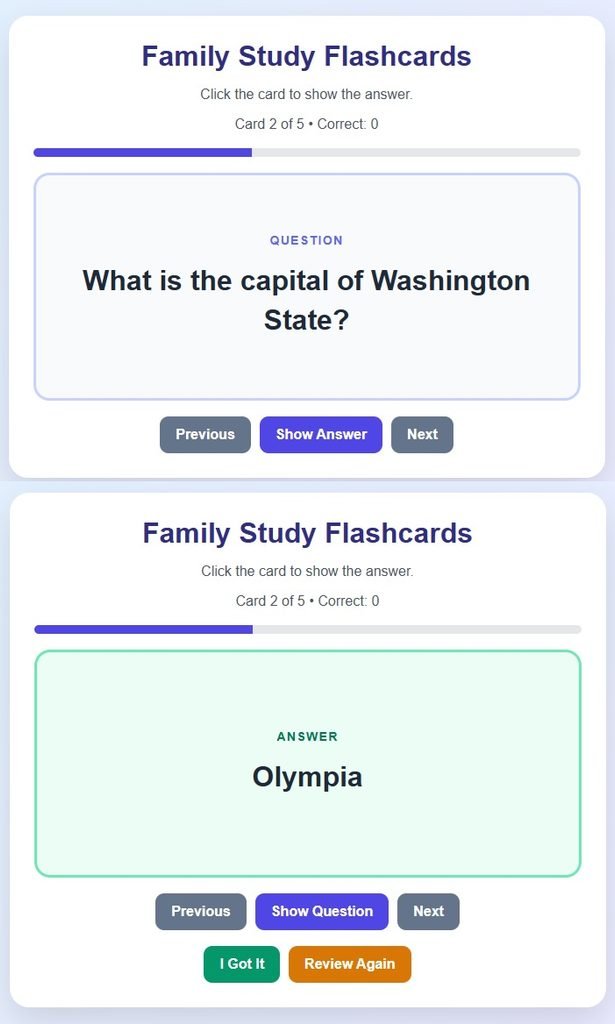
    Flashcard example

    Helping a child review for a test can become surprisingly complicated. Notes may be in Google Classroom, worksheets may be in a backpack, and important vocabulary may be spread across several assignments. In our home, one of the hardest parts was not finding the material—it was getting through the same material more than once. After reviewing a question one time, it was easy to move on even when the answer was not fully remembered.

    Keeping track of the results was inconvenient too. We could use paper flashcards, but then we had to make separate piles or marks to remember which questions needed another try. I wanted a simple tool that could show one question at a time, reveal the answer, and record whether the answer was correct.

    The solution below is a small flashcard program that runs in a web browser. It does not require an account, a subscription, or an internet connection after the file has been saved. A parent only needs to replace the sample questions and answers.

    1. What This Flashcard Tool Does

    The program includes several useful study features:

    • Shows one question at a time
    • Reveals the answer when the card is clicked
    • Provides Previous and Next buttons
    • Records I Got It and Review Again responses
    • Displays the score and remaining cards
    • Offers a Restart button for another study round
    • Runs locally on a Windows computer

    This is useful for vocabulary, science terms, history facts, math formulas, spelling, and short-answer test review.

    2. What You Need

    You only need:

    1. A Windows computer
    2. Notepad
    3. A web browser such as Chrome, Edge, or Firefox
    4. A list of questions and answers

    No programming software needs to be installed.

    3. Copy the Flashcard Template

    Open Notepad and copy all of the following code into a new blank file:

    <!DOCTYPE html>
    <html lang="en">
    <head>
      <meta charset="UTF-8">
      <meta name="viewport" content="width=device-width, initial-scale=1.0">
      <title>Family Study Flashcards</title>
      <style>
        * { box-sizing: border-box; }
    
        body {
          margin: 0;
          min-height: 100vh;
          display: flex;
          align-items: center;
          justify-content: center;
          padding: 24px;
          font-family: Arial, sans-serif;
          color: #1f2937;
          background: linear-gradient(135deg, #e0f2fe, #ede9fe);
        }
    
        .app {
          width: min(680px, 100%);
          padding: 28px;
          background: white;
          border-radius: 22px;
          box-shadow: 0 16px 40px rgba(31, 41, 55, 0.15);
        }
    
        h1 {
          margin: 0 0 8px;
          text-align: center;
          color: #312e81;
        }
    
        .instructions, .status {
          text-align: center;
          color: #4b5563;
        }
    
        .progress-track {
          height: 10px;
          margin: 18px 0;
          overflow: hidden;
          background: #e5e7eb;
          border-radius: 999px;
        }
    
        .progress-bar {
          height: 100%;
          width: 0;
          background: #4f46e5;
          transition: width 0.25s ease;
        }
    
        .card {
          min-height: 260px;
          display: flex;
          flex-direction: column;
          align-items: center;
          justify-content: center;
          padding: 34px;
          border: 3px solid #c7d2fe;
          border-radius: 18px;
          text-align: center;
          cursor: pointer;
          background: #f8fafc;
          transition: transform 0.2s, background 0.2s;
          user-select: none;
        }
    
        .card:hover { transform: translateY(-2px); }
        .card.answer { background: #ecfdf5; border-color: #6ee7b7; }
    
        .label {
          margin-bottom: 16px;
          font-size: 0.85rem;
          font-weight: bold;
          letter-spacing: 0.12em;
          color: #6366f1;
        }
    
        .card.answer .label { color: #047857; }
    
        .card-text {
          font-size: clamp(1.35rem, 4vw, 2rem);
          line-height: 1.4;
          font-weight: bold;
        }
    
        .controls, .rating-controls {
          display: flex;
          flex-wrap: wrap;
          gap: 10px;
          justify-content: center;
          margin-top: 18px;
        }
    
        button {
          padding: 12px 18px;
          border: 0;
          border-radius: 10px;
          font-size: 1rem;
          font-weight: bold;
          cursor: pointer;
          color: white;
          background: #4f46e5;
        }
    
        button:hover { filter: brightness(0.93); }
        button:disabled { opacity: 0.45; cursor: not-allowed; }
        .correct { background: #059669; }
        .review { background: #d97706; }
        .secondary { background: #64748b; }
        .hidden { display: none; }
    
        .results {
          padding: 32px 10px;
          text-align: center;
        }
    
        .score {
          margin: 16px 0;
          font-size: 2.2rem;
          font-weight: bold;
          color: #4f46e5;
        }
      </style>
    </head>
    <body>
      <main class="app">
        <section id="studyScreen">
          <h1>Family Study Flashcards</h1>
          <p class="instructions">Click the card to show the answer.</p>
          <p class="status" id="status"></p>
    
          <div class="progress-track">
            <div class="progress-bar" id="progressBar"></div>
          </div>
    
          <div class="card" id="card" tabindex="0" role="button">
            <div class="label" id="cardLabel">QUESTION</div>
            <div class="card-text" id="cardText"></div>
          </div>
    
          <div class="controls">
            <button class="secondary" id="previousButton">Previous</button>
            <button id="flipButton">Show Answer</button>
            <button class="secondary" id="nextButton">Next</button>
          </div>
    
          <div class="rating-controls hidden" id="ratingControls">
            <button class="correct" id="correctButton">I Got It</button>
            <button class="review" id="reviewButton">Review Again</button>
          </div>
        </section>
    
        <section class="results hidden" id="resultsScreen">
          <h1>Study Round Complete!</h1>
          <p>Your score is:</p>
          <div class="score" id="finalScore"></div>
          <p id="resultMessage"></p>
          <button id="restartButton">Study Again</button>
        </section>
      </main>
    
      <script>
        // EDIT ONLY THIS LIST TO ADD YOUR OWN FLASHCARDS.
        const flashcards = [
          { question: "What is photosynthesis?", answer: "The process plants use to turn light energy into food." },
          { question: "What is the capital of Washington State?", answer: "Olympia" },
          { question: "What is 8 × 7?", answer: "56" },
          { question: "What does 'analyze' mean?", answer: "To examine something carefully and in detail." },
          { question: "What is the formula for the area of a rectangle?", answer: "Length × width" }
        ];
    
        let currentIndex = 0;
        let showingAnswer = false;
        let correctCount = 0;
        let ratedCards = new Array(flashcards.length).fill(null);
    
        const card = document.getElementById("card");
        const cardLabel = document.getElementById("cardLabel");
        const cardText = document.getElementById("cardText");
        const status = document.getElementById("status");
        const progressBar = document.getElementById("progressBar");
        const flipButton = document.getElementById("flipButton");
        const previousButton = document.getElementById("previousButton");
        const nextButton = document.getElementById("nextButton");
        const ratingControls = document.getElementById("ratingControls");
    
        function displayCard() {
          showingAnswer = false;
          card.classList.remove("answer");
          cardLabel.textContent = "QUESTION";
          cardText.textContent = flashcards[currentIndex].question;
          flipButton.textContent = "Show Answer";
          ratingControls.classList.add("hidden");
          status.textContent = `Card ${currentIndex + 1} of ${flashcards.length} • Correct: ${correctCount}`;
          progressBar.style.width = `${((currentIndex + 1) / flashcards.length) * 100}%`;
          previousButton.disabled = currentIndex === 0;
          nextButton.disabled = currentIndex === flashcards.length - 1;
        }
    
        function flipCard() {
          showingAnswer = !showingAnswer;
    
          if (showingAnswer) {
            card.classList.add("answer");
            cardLabel.textContent = "ANSWER";
            cardText.textContent = flashcards[currentIndex].answer;
            flipButton.textContent = "Show Question";
            ratingControls.classList.remove("hidden");
          } else {
            card.classList.remove("answer");
            cardLabel.textContent = "QUESTION";
            cardText.textContent = flashcards[currentIndex].question;
            flipButton.textContent = "Show Answer";
            ratingControls.classList.add("hidden");
          }
        }
    
        function moveCard(direction) {
          currentIndex += direction;
          displayCard();
        }
    
        function rateCard(isCorrect) {
          if (ratedCards[currentIndex] === true) correctCount--;
          ratedCards[currentIndex] = isCorrect;
          if (isCorrect) correctCount++;
    
          if (currentIndex < flashcards.length - 1) {
            currentIndex++;
            displayCard();
          } else {
            showResults();
          }
        }
    
        function showResults() {
          document.getElementById("studyScreen").classList.add("hidden");
          document.getElementById("resultsScreen").classList.remove("hidden");
          document.getElementById("finalScore").textContent = `${correctCount} / ${flashcards.length}`;
    
          const reviewCount = flashcards.length - correctCount;
          document.getElementById("resultMessage").textContent = reviewCount === 0
            ? "Excellent work! Every card was answered correctly."
            : `${reviewCount} card${reviewCount === 1 ? "" : "s"} may need another review.`;
        }
    
        function restartStudy() {
          currentIndex = 0;
          correctCount = 0;
          ratedCards = new Array(flashcards.length).fill(null);
          document.getElementById("resultsScreen").classList.add("hidden");
          document.getElementById("studyScreen").classList.remove("hidden");
          displayCard();
        }
    
        card.addEventListener("click", flipCard);
        card.addEventListener("keydown", event => {
          if (event.key === "Enter" || event.key === " ") flipCard();
        });
        flipButton.addEventListener("click", flipCard);
        previousButton.addEventListener("click", () => moveCard(-1));
        nextButton.addEventListener("click", () => moveCard(1));
        document.getElementById("correctButton").addEventListener("click", () => rateCard(true));
        document.getElementById("reviewButton").addEventListener("click", () => rateCard(false));
        document.getElementById("restartButton").addEventListener("click", restartStudy);
    
        displayCard();
      </script>
    </body>
    </html>

    4. Add Your Own Questions and Answers

    Near the bottom of the code, find this section:

    const flashcards = [
      { question: "What is photosynthesis?", answer: "The process plants use to turn light energy into food." },
      { question: "What is the capital of Washington State?", answer: "Olympia" }
    ];

    Replace the sample text inside the quotation marks with your own study material. Each flashcard follows this pattern:

    { question: "Type the question here", answer: "Type the answer here" },

    For example, a vocabulary card could look like this:

    { question: "What does 'contrast' mean?", answer: "To identify differences between two or more things." },

    Be careful not to delete the quotation marks, braces, or comma. The final card in the list does not need a comma after it.

    5. Save the File Correctly in Windows

    In Notepad:

    1. Select File → Save As.
    2. Enter family-flashcards.html as the file name.
    3. Change Save as type to All Files.
    4. Select UTF-8 for the encoding.
    5. Save the file somewhere easy to find, such as the Desktop.

    The .html ending is important. If the file is saved as family-flashcards.html.txt, Windows will treat it as a text document instead of a web page.

    6. Open and Use the Flashcards

    Double-click family-flashcards.html. It should open in your default web browser.

    Read the question first and let your child answer without looking at the back. Click the card or select Show Answer. Then choose:

    • I Got It when the answer was correct
    • Review Again when the answer was incorrect or incomplete

    At the end, the program shows the number of correctly answered cards. Select Study Again to restart the complete set.

    7. A Simple Way to Use the Score

    The score is not meant to replace a school grade. I use it as a quick guide for deciding what needs more attention.

    For example:

    • 90–100%: Review briefly one more time before the test.
    • 70–89%: Repeat the cards that were difficult.
    • Below 70%: Break the material into a smaller set and study it in shorter sessions.

    This makes the study result easier to understand than relying on memory alone. Instead of wondering which questions caused trouble, a parent and child can immediately see whether another round would be helpful.

    One limitation is that the current version shows the total score but does not save it after the browser is closed. This is helpful for privacy because the information stays on the computer, but parents who want a long-term record should write the date and score in a notebook or spreadsheet.

    8. Troubleshooting Common Problems

    The code opens as text

    Check the file name. It must end in .html, not .txt. In File Explorer, enable View → Show → File name extensions if the ending is hidden.

    The page is blank or the buttons do not work

    A quotation mark, comma, brace, or bracket may have been deleted while adding questions. Compare the edited flashcard list with the original sample.

    An apostrophe causes a problem

    The template uses double quotation marks around each question and answer, so ordinary apostrophes in words such as child's should work. Avoid adding unescaped double quotation marks inside the question or answer. You can use single quotation marks inside the text instead.

    Changes do not appear

    Save the file in Notepad, return to the browser, and refresh the page. If an older version still appears, close the browser tab and open the HTML file again.

    Final Thoughts

    A study tool does not need to be complicated to be useful. This flashcard program puts the questions, answers, and results in one place while keeping the setup simple enough for a parent to manage.

    The most useful part for our family is the repeatable routine: read the question, say the answer, check it, and record the result. That structure makes it easier to return to material that was not remembered the first time. Because the program is only one HTML file, I can also make a separate copy for each subject or upcoming test without creating another online account.

    Start with five to ten cards. Once the tool is working, add more questions gradually and keep each answer short enough to review quickly.